Everyone wants to talk about Copilot—but before you ask AI to work with your documents, you need to make sure it can understand what those documents are.
If your SharePoint libraries are full of files called:
- Final.docx
- Final v2.docx
- Final FINAL.docx
- Use this one.docx
…Copilot is working with the same confusion your people are.
Copilot can help you find, summarise and work with information, but it still relies on the content it can access and the context surrounding it. This is where metadata becomes so important.
Metadata gives your documents structure. It helps people as well as Copilot understand what a document is, which part of the organisation it belongs to, whether it is current and who is responsible for it.
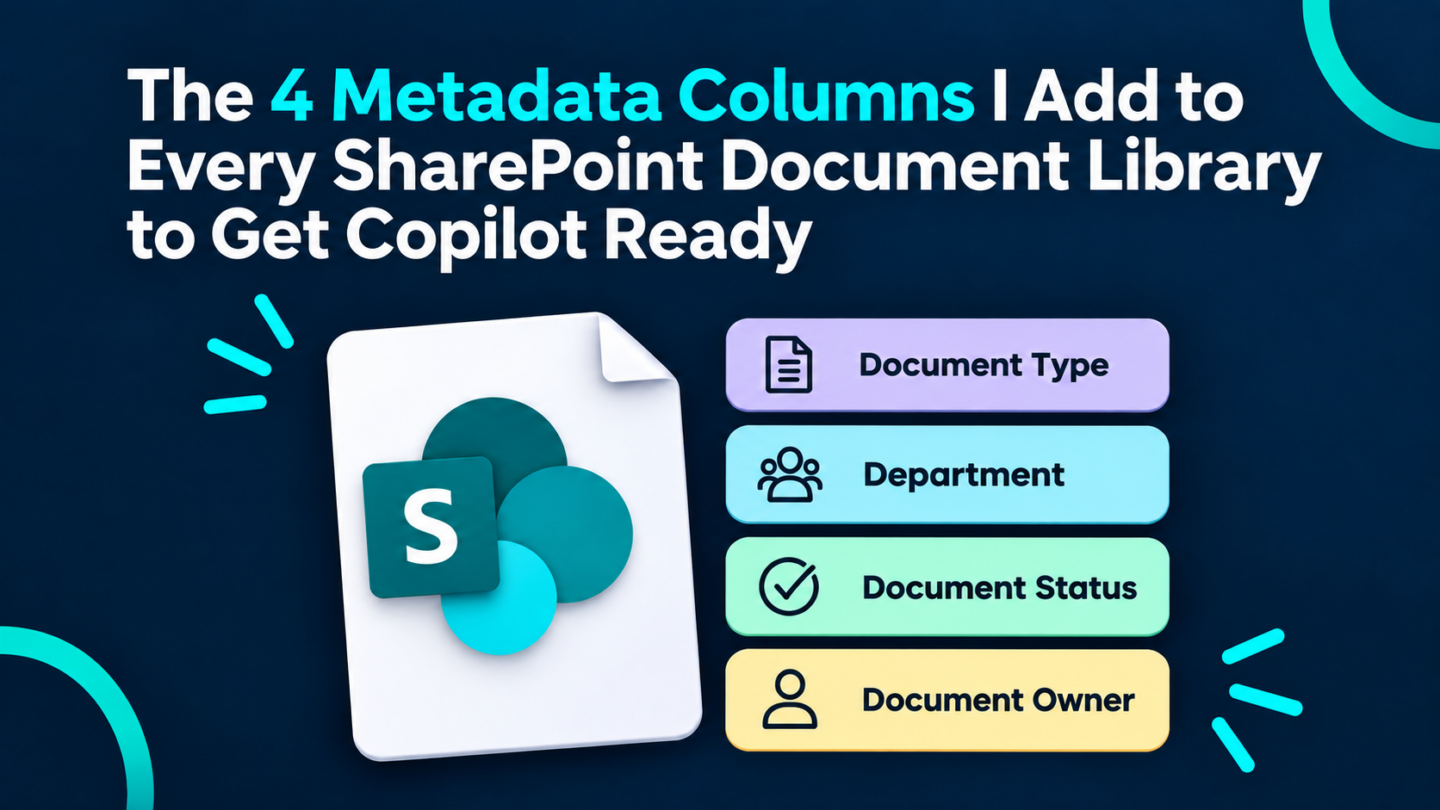
You do not need to begin with 20 complicated columns. In most SharePoint document libraries, I start with four.
1. Department
The first column I add is Department.
This identifies the business area responsible for the document, such as:
- Human Resources
- Finance
- Technology
- Marketing
- Operations
Department is particularly useful when documents from several business areas are stored in the same library or surfaced through a central search experience.
Instead of relying on folder names to explain where a document belongs, the department becomes part of the document’s information.
This helps users filter and group documents, create useful views and narrow their search results. It also gives Copilot additional context about the part of the organisation the document relates to.
I normally create Department as a Choice column or a Managed Metadata column, depending on how widely the values need to be reused.
The important part is consistency. If one person enters “HR”, another enters “Human Resources” and someone else types “People and Culture”, SharePoint treats those as different values.
Wherever possible, give people a controlled list rather than a blank text box.
2. Document Type
The second column is Document Type.
This describes what the document actually is.
For example:
- Policy
- Procedure
- Guideline
- Form
- Template
- Report
- Meeting minutes
- Project document
Document Type is one of the most useful pieces of metadata you can add because people often search by the kind of information they need.
They may not know the filename or where the document is stored, but they do know they need a policy, template or monthly report.
It also helps separate documents that cover the same subject but serve different purposes. A leave policy, leave request form and leave procedure might all relate to leave, but they are not interchangeable.
For Copilot, Document Type provides useful context. It helps distinguish an approved policy from a working note, a procedure from a template, or a formal report from general supporting material.
I generally use a Choice column when the list is small and only needed within one library. If Document Type will be used across multiple sites and libraries, I consider creating it in the Term Store as managed metadata.
3. Document Status
The third column is Document Status.
This tells people where a document is in its lifecycle and, most importantly, whether they should rely on it.
Common values might include:
- Draft
- In review
- Approved
- Published
- Superseded
- Archived
This column becomes extremely important when several versions or similar documents exist.
Without a clear status, a user, or Copilot may find a draft, an old version and a published version of the same document. All three might look legitimate.
That is how outdated information continues circulating around an organisation.
Document Status gives people a visible signal about whether a file is ready to use. It can also support filtered views, approval processes and publishing workflows.
For example, you can create a view that only displays documents where the status is Published. You can then use that view on a SharePoint page to give staff a cleaner, more trustworthy experience.
Document Status is usually a Choice column because the available values should be tightly controlled.
Do not let people invent their own statuses. Keep the options clear, meaningful and aligned with the way documents are actually managed in your organisation.
4. Document Owner
The fourth column is Document Owner.
This answers one very important question:
Who is accountable for this document?
I do not mean the person who uploaded it three years ago. I mean the person who is responsible for making sure it remains accurate, current and appropriate.
The owner might be responsible for:
- Reviewing the document
- Confirming that the information is still correct
- Approving updates
- Managing access
- Deciding when the document should be archived or removed
I use a Person column for Document Owner so the responsible individual can be selected directly from the organisation.
Where possible, choose a named person rather than a general label such as “HR Team”. Teams change, responsibilities move and shared mailboxes do not always create genuine accountability.
Document ownership is essential for good governance. It gives you someone to contact when content needs to be reviewed, questioned or cleaned up.
It also creates the foundation for automation. For example, you could use Power Automate to notify the document owner when a review date is approaching.
Why These Four Columns Work Together
Each column answers a different question:
| Metadata column | Question it answers |
|---|---|
| Department | Which business area does this belong to? |
| Document Type | What kind of document is it? |
| Document Status | Can I rely on it? |
| Document Owner | Who is accountable for it? |
Together, they create a simple layer of business context around every document.
That context can improve:
- Search results
- Library views
- Filtering and grouping
- Document governance
- Review and approval processes
- Content lifecycle management
- The quality of information available to Copilot
Metadata alone will not make an entire SharePoint environment Copilot ready. You still need to look at permissions, duplicate content, outdated information, naming, site structure and ownership.
But these four columns are a practical place to start.
Keep It Simple
One of the biggest mistakes I see organisations make is creating far too much metadata.
If users are presented with 15 mandatory fields every time they upload a document, they will avoid the process, enter meaningless values or find somewhere else to save their files.
Every column should have a clear purpose.
Ask:
- Will people use this value to find or filter information?
- Does it help us understand the document?
- Does it support a governance or business process?
- Can some of the value be applied automatically?
If you cannot explain why a column is needed, you probably do not need it.
Start with a small amount of useful metadata, make the options easy to understand and build from there.
Start Planning Your Metadata and Structure
Getting Copilot ready does not begin with switching on AI. It begins with creating information people can find, understand and trust.