Copilot in SharePoint is no longer a preview you can ignore. Microsoft began its general availability rollout on 30 September 2026. Its everyday capabilities are included with an active Microsoft 365 Copilot licence, although what you see also depends on your organisation’s settings.
That little Copilot button is brilliant. It can help you understand files, create views and suggest new columns for a library. But it works with the content people can access. If your library is 4,000 files called “Final_v2_USE THIS ONE”, finding the right answer becomes a much harder job.
So before you click it, I want you to know where you stand.
Why readiness matters more now
For years, a messy SharePoint was annoying. People complained, then emailed each other attachments and moved on.
With Copilot, messy SharePoint content can contribute to a confident wrong answer. Copilot respects existing permissions, so it only draws on content the person can access. That is good news for security and a reason to review any access that is already too broad.
Old drafts, duplicates and abandoned project sites also make it harder to identify authoritative information. Clear ownership, useful metadata and current content help people understand what they should trust. They support AI readiness too, but they do not guarantee a correct answer: check important outputs against the source.
That foundation is information architecture. There is no AI without IA.
What the Scorecard checks
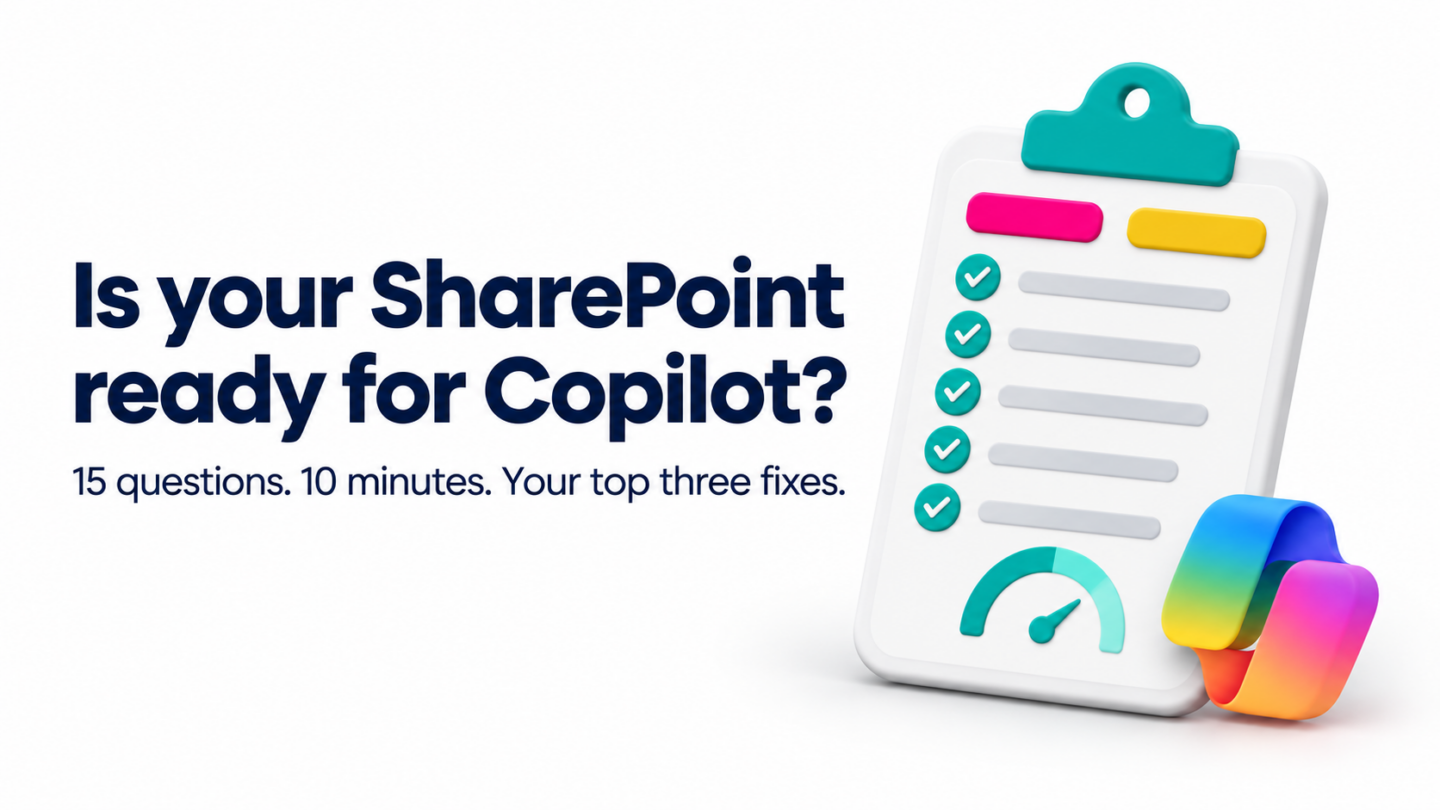
The Scorecard checks five areas across fifteen practical questions. You score one SharePoint site out of 30, see a score for each area, and identify your top three fixes. Every question includes a “How to check” tip, and you do not need admin access.
1. Access and sharing: is sharing under control?
Copilot does not create oversharing. It can make existing oversharing easier to discover. If access is unclear, start with my SharePoint permissions and sharing guide. If “Everyone except external users” has access to a site holding sensitive HR or finance files, review whether that access is appropriate before encouraging people to explore it with AI.
Check who can open the site and which sharing links might allow more people in than you intended. If you cannot see or change those settings, ask the site owner or your Microsoft 365 administrator to help.
2. Structure: can people find the right place?
Ask yourself: if a new starter needed the current leave policy, would they know which site to open? If the answer involves the words “it depends who you ask”, structure is your first fix.
Libraries and folders should help people find things, rather than hide them. Start with the places your team uses most and make their purpose clear.
3. Metadata: does each file say what it is?
Folders tell you where a file lives. Metadata tells you what it is. Four useful starting columns are Document Type, Document Status, Department and Document Owner.
These give people useful context and make it easier to build views that separate the files they need from everything else. Copilot can use file content too; metadata adds explicit signals about how your team organises and manages that information.
4. Content currency: can you trust what is there?
This brings together status, duplicates, versions and document ownership. Can you tell whether a file is Draft, Current, Superseded or Archived? Is there one agreed source of truth? Does somebody own the job of keeping it accurate?
SharePoint has version history built in, yet many libraries are full of separate copies with dates in the file name. Every copy adds uncertainty about which document people should use.
A named Document Owner is the cheapest governance you will ever buy. When nobody owns a document, nobody reliably updates it, archives it or decides when it should go.
5. Copilot and agent readiness: would you trust the answer?
Who owns the site, and would you trust an answer drawn from its content today? Think about the sources a colleague or agent would use, whether those sources are current, and who will check important answers.
You can take the Scorecard without a Copilot licence. A clean, well-structured site makes everyday search and sharing easier as well as providing a better foundation for AI.
How to take the Scorecard
- Pick one SharePoint site you know well. Use a familiar library as a starting point, but include the site-level checks. Do not try to score the whole tenant.
- Get the Scorecard and answer the fifteen questions honestly. It takes about ten minutes.
- Read your score out of 30, your five area scores and your top three fixes.
- Do fix number one this week. Just one.
That is it. No consultant, no project plan, no 40-slide deck needed to get started.
What to do with your score
If you scored high: lovely. Try a small Copilot task in a library you trust and check the result. For example, if you have a Document Status column containing “Current”, ask Copilot to create a view filtered to those documents. Confirm the filter and the files it returns.
If you scored in the middle: you are normal. Start with the priorities your Scorecard identifies. If metadata is one of them, agree useful columns and values with the people who use the library.
Copilot can help here too. The Create autofill columns option analyses a sample of files and suggests columns and extraction prompts. Review the suggestions and test the generated values before relying on them. This action adds metadata; it is not a file clean-up or deletion tool. Assign named owners yourself: Person or Group columns are not currently supported by Autofill.
If you scored low: do not panic. Fix inappropriate access promptly with the site owner or administrator, then work through the remaining priorities. For practical content clean-up, follow my step-by-step guide, How to Clean Up a SharePoint Document Library with Copilot. It walks you through the columns, clean-up views and prompts I use.
A quick word on timing
Microsoft is moving fast this month. Ignite runs from 17 to 20 November 2026. Microsoft has also announced that the transition to Copilot Agent Builder for new SharePoint and OneDrive agents is scheduled to begin in mid-November and complete by early December.
New features will keep arriving. A tidy library makes the information behind them more useful, so the work you do now is not wasted, whatever Microsoft announces next.
Start with ten minutes
You do not need to fix everything. You need to know what to fix first.
SharePoint, simply sorted.
Sources and feature notes
- Microsoft Learn: Get started with Copilot in SharePoint
- Microsoft Learn: Create autofill columns
- Microsoft: SharePoint agent changes and rollout timing
Feature details checked on 7 November 2026. Availability, controls and licensing can change. Advanced work and site-wide real-time Autofill can require usage-based billing and Copilot Credits.