
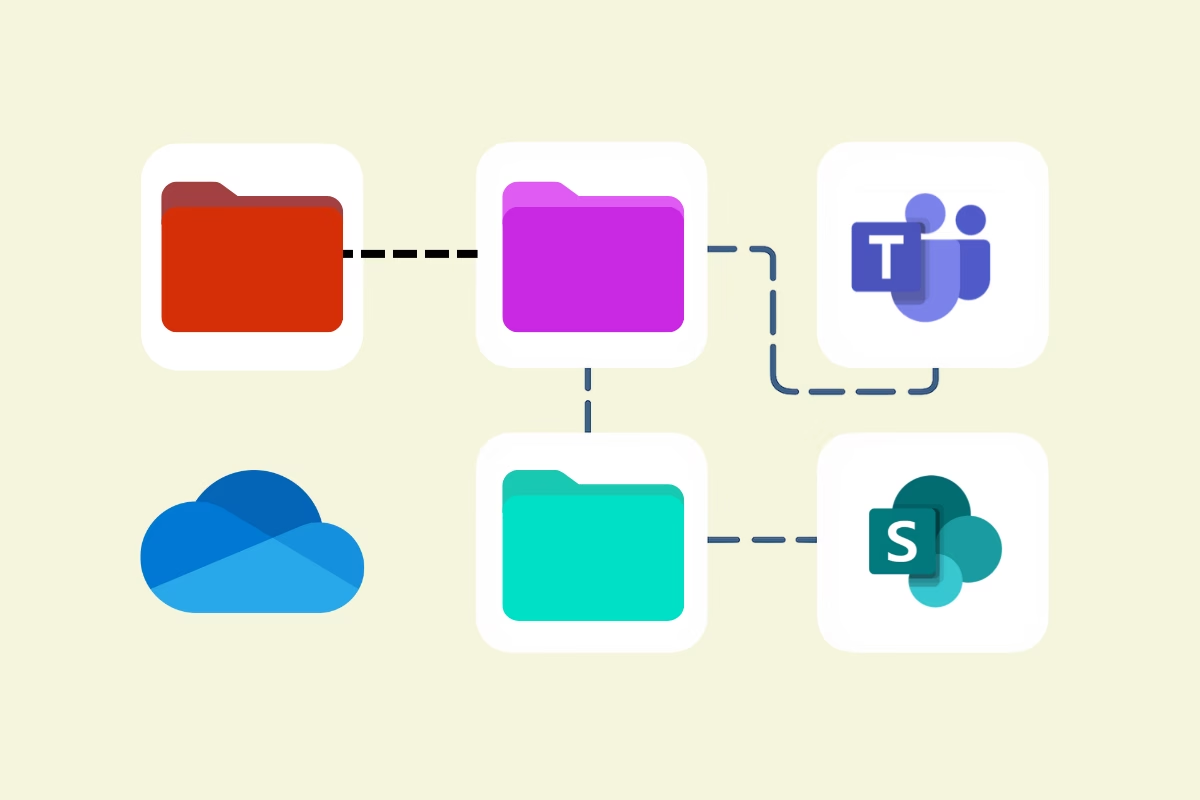
I rely on OneDrive every day—but not in the “dump everything in one place and hope for the best” kind of way. Do you ever get lost in OneDrive? I certainly used to, until I worked out a way to structure my OneDrive so it worked for me. Below is how I work with OneDrive and my workflow from draft personal documents to publishing final documents.
OneDrive Is My Workspace—Not My Archive
For me, OneDrive is the home for my personal working files. It’s where ideas take shape, where drafts live, and where I stay organised before anything is shared or finalised. I’ve developed a workflow that helps me manage the lifecycle of documents from rough drafts to final versions, and I want to share it in case it helps you cut through the clutter too.
I treat OneDrive like a personal workbench. When I start a document, it always begins here. It’s my space to work freely, iterate quickly, and store drafts or reference material I’m using right now.
I don’t worry about perfection or structure at this stage—I just need somewhere reliable to get things moving. That said, because I’m constantly creating and revising, it would get chaotic fast without a system.
That’s where my folder structure comes in.
My Folder System: Simple, but Powerful
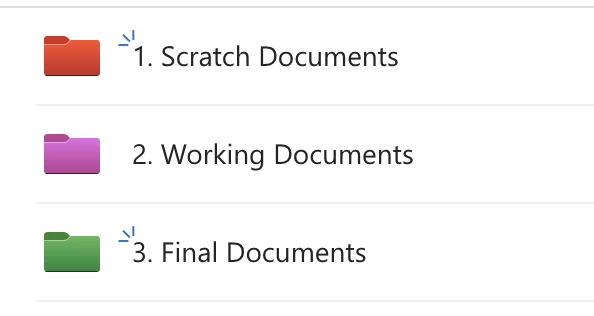
I use a three-folder structure that mirrors how I think about my work:
Scratch Documents
This is where every new document starts. Drafts, scratchpads, notes, and early outlines live here. I keep it clean by:
- Colour-coding the folder so I can spot it instantly
- Doing a five-minute cleanup at the end of each day—filing or deleting as needed
Working Documents
Once a document starts taking shape or is actively in progress, it moves here. These are the things I’m actively working on and I use clear naming conventions for folders so I can navigate quickly.
Final Documents
When something wraps up, or if it’s part of a long-term initiative, it goes here. The document remains here until I move it.
SharePoint
Once a document is finalised—after reviews, edits, and approvals—it gets moved to the appropriate SharePoint document library. That’s where it will live permanently, organised by team, function, or project.
SharePoint is where my “official” documents go. It’s structured, secure, and made for visibility across teams. But I never start work there—it’s the final stop, not the launchpad. to a final place, if I need to make it available to others, then that place is most likely SharePoint.
How I Collaborate From OneDrive
Once something’s ready for feedback or collaboration, I share it directly from OneDrive or move it into a Teams channel.
Sharing from OneDrive
If it’s a one-on-one or short-term collaboration, I simply use the sharing options in OneDrive. I can control who has access and manage permissions easily.
Using Microsoft Teams
For ongoing or group-based work, I upload documents to the relevant Teams channel. This keeps the conversation and files together and ensures visibility for everyone involved.
This step marks the transition from personal work to collaborative effort.
Using Colour Coding to Stay Visually Organised
One of the small tweaks that’s made a big impact in how I use OneDrive is colour coding my main folders. I assign a specific colour to each of my three core folders—red for Scratch Documents, purple for Working Documents, and green for Final Documents. This allows me to spot them instantly, especially when working across multiple synced devices or in the OneDrive web interface. Visual clarity reduces hesitation when saving or retrieving files, and it gives me a subtle but constant mental cue about the purpose of each folder based on its colour.
Bringing in SharePoint Libraries with Shortcuts
While OneDrive is my workspace for personal files, all final documents are in SharePoint. To streamline access, I use the “Add shortcut to OneDrive” feature to pull in important SharePoint libraries directly into my OneDrive view. This means I don’t need to jump into SharePoint every time I need a team document—I can access those libraries right from my OneDrive sidebar. It’s especially useful for team or project-based content, and I often colour-code these shortcut folders too, so I can distinguish them from my own folders at a glance. This makes OneDrive feel like a unified command centre for both personal and shared work.
Why This Workflow Works
This system supports the way I naturally work:
- OneDrive gives me space to create, develop, and draft without pressure
- Teams allows collaboration without cluttering my personal workspace
- SharePoint keeps final versions in a stable, team-accessible location
And my folder system keeps OneDrive from turning into a digital junk drawer.
Final Thoughts
If your OneDrive feels chaotic, consider building a simple structure around how you actually work—not just how you think you “should” be organising files. Start with one folder—Working Documents—and build from there.
You don’t need a complex system. Just one that works for you. This one works for me, and it’s helped me stay clear, focused, and on top of my work—without wasting time searching for lost drafts or buried files.
FREE: Download the M365 Map – the visual guide to how content should be organised.
Download the M365 MapReady to make SharePoint simpler?
Explore the Simply SharePoint Hub
If this post helped you untangle part of SharePoint, you’ll find more practical guides, templates, toolkits and resources inside the Simply SharePoint Hub. It’s where I keep the downloads and support materials designed to help you clean up, structure and actually use SharePoint with more confidence.
Visit the Simply SharePoint Hub →
Hi, I’m Liza 👋
Microsoft MVP (SharePoint) • SharePoint Blogger • Information Architecture Specialist
I’ve been working with SharePoint for nearly two decades, across consulting and in-house roles, helping organisations design, clean up, and scale their Microsoft 365 environments. I now run one of the fastest-growing SharePoint blogs, sharing practical guidance based on real-world experience.
My focus is information architecture — the layer that determines whether search works, governance sticks, and tools like Copilot actually deliver value… or quietly make things worse.
Through Simply SharePoint, I share practical, real-world guidance on structuring libraries, designing metadata, managing permissions, and fixing the issues that policies and “best practice” slides never really solve.
Everything on this SharePoint blog is based on how SharePoint is actually used — not how we wish it was used — with a strong emphasis on foundations that scale and hold up in the AI era.
