
What’s the Difference Between SharePoint and OneDrive? The Definitive 2026 Guide
The 60-second answer
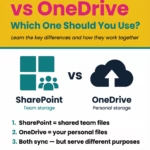
OneDrive is your personal cloud storage in Microsoft 365. SharePoint is your team’s cloud storage. If a file is only ever going to be yours, it belongs in OneDrive. If more than one person might ever need it — even just to read it — it belongs in SharePoint. That’s the rule. Everything else is detail.
After twenty years working with SharePoint across hundreds of organisations, I can tell you most Microsoft 365 problems trace back to getting this one decision wrong. Usually because “OneDrive feels safer” or “we’ve always saved things this way.” Six months later, someone leaves and their team’s institutional knowledge disappears with them.
- →What is OneDrive?
- →What is SharePoint?
- →The one rule that eliminates 90% of confusion
- →What a good setup looks like
- →What a bad setup looks like — and what it costs
- →Where does Teams fit in?
- →How OneDrive and SharePoint work together
- →The Copilot readiness angle
- →The decision framework, step by step
- →Common mistakes and their consequences
- →Frequently asked questions
| At a glance | OneDrive | SharePoint |
|---|---|---|
| Who owns it | You, personally | The team, department, or organisation |
| Default privacy | Private until shared | Shared with the team by design |
| Best for | Drafts, notes, personal reference | Team files, projects, policies, intranet content |
| Copilot / AI visibility | Only visible to you | Visible to your team and searchable by AI in SharePoint |
| What happens when you leave | Deleted after 30–60 days | Stays with the organisation |
What is OneDrive?
OneDrive is your personal cloud storage in Microsoft 365. Every user gets their own OneDrive. What you put in there is private by default — nobody sees your OneDrive files unless you explicitly share them.
Think of OneDrive as your digital filing cabinet: personal work and drafts, notes and reference material, career documents, and anything you use across your work devices. Most Microsoft 365 plans include 1 TB of OneDrive storage per user — enough for tens of thousands of documents. If you’re running out of OneDrive space, you’re almost certainly storing things there that should be somewhere else.
Key features of OneDrive
- →Personal storage — private by default, only you can see files unless you explicitly share
- →Access anywhere — automatically synced across your devices
- →Individual file sharing — you can share files with specific people, but it’s done one file at a time
- →Full Microsoft 365 integration — files open in Word, Excel, Teams, and now Copilot
- →File recovery — deleted files stay in your Recycle Bin for 30 days, then a further 60 in the admin bin
When to use OneDrive
- →Personal drafts before they’re ready to share
- →Research and reference material that’s just for you
- →Documents you access frequently across devices
- →Very lightweight collaboration on one specific file with one or two people
- →Working files that will eventually move to SharePoint when finalised
What OneDrive was never meant to be
Here’s what I see go wrong over and over as a consultant: people treat OneDrive as their primary storage for team content. It feels safer — it’s “yours” — so people default to saving there and share when needed.
The problem is what happens when that person leaves or moves roles. Their OneDrive is typically wiped 30 to 60 days after their account is disabled. Every team file they stored there disappears with them.
I’ve worked with organisations where entire client-relationship histories vanished because the account manager stored everything in her own OneDrive. Six months of client proposals gone in 30 days. If a colleague might ever need to find a file you’re working on — even just to reference it once — it should not live in your OneDrive.
What is SharePoint?
SharePoint is your team-based collaboration and content management platform. It’s where team files, department resources, project documents, and organisation-wide information actually live. Where OneDrive is for “me,” SharePoint is for “we.” It’s designed for shared work — with features that keep things organised, ensure everyone has access to the latest version, and increasingly, support Microsoft’s AI features.
Key features of SharePoint (2026)
- →Team collaboration at scale with shared libraries
- →Metadata columns for finding files by attribute, not just location
- →Permissions and governance to control who can do what
- →Version history — automatic tracking of every change
- →Intranet functionality for company or department websites
- →AI in SharePoint (new) — automatic metadata tagging, natural-language search, AI-built sites, rolled out May 2026
- →The App Bar (new) — the four-hub navigation panel (Discover, Publish, Build, OneDrive) on every SharePoint page
When to use SharePoint
- →Any file that more than one person needs to access
- →Team documents, department resources, project files
- →Content that needs version control, retention policies, or permissions
- →Anything you want Microsoft Copilot to be able to help you find
- →Intranet pages, policies, procedures, and shared references
- →Anywhere that “institutional knowledge” needs to survive people leaving
The 2026 SharePoint experience
If you haven’t logged into SharePoint in twelve months, the interface will feel different. The App Bar on the left of every SharePoint page is the biggest visible change — four icons that give you completely new ways to navigate.
But the more consequential change is invisible: AI in SharePoint went generally available in May 2026. It reads your content, applies metadata automatically, builds sites from natural-language prompts, and answers questions across your organisation’s SharePoint. If your SharePoint is well-structured, it’s genuinely useful. If it isn’t, AI just surfaces the mess — faster, and to more people.
Which brings me to the practical question every organisation is quietly wrestling with in 2026: does our OneDrive-vs-SharePoint setup actually work? Or have we been avoiding the question for years?
The one rule that eliminates 90% of confusion
Here’s the decision rule I give every organisation I work with. It’s simple enough that everyone can remember it, and specific enough that it actually works in practice.
If only YOU will ever need this file, save it to OneDrive. The moment a second person might ever need it — even just to read it — save it to SharePoint.
Not “will definitely need it.” Not “will need it this week.” Might ever need it. The reason this rule works is that the cost of guessing wrong is asymmetric. The cost of accidentally putting something in SharePoint that could have been in OneDrive is essentially zero — you can move it later, or leave it. The cost of putting team content in OneDrive is potentially catastrophic — it disappears when the person leaves, colleagues can’t find it, Copilot can’t index it, compliance audits fail. When in doubt, default to SharePoint.
What a good setup looks like
Let me show you what a genuinely working setup looks like. I recently worked with a 30-person consulting firm that had nailed this properly.
In OneDrive
Each consultant’s personal working drafts. Notes from calls before they’d been written up. Personal research and reference material. Career documents. Individual scratch pads.
In SharePoint
- →A “Clients” hub site with a separate site per major client
- →A “Practice Areas” hub with knowledge management by service line
- →A “People & Culture” site for HR-relevant content
- →A “Marketing” site for pitches and thought leadership
- →A “Templates” site with reusable templates for every practice area
Every client site had the same three metadata columns: Document Type (Contract, Deliverable, Meeting Notes, Correspondence), Status (Draft, Approved, Signed, Archived), and Team Member (person responsible). Every consultant knew where to save things because the pattern was consistent across all client sites.
The result
- ✓When someone went on leave, everything they needed was accessible
- ✓When someone left the firm, their client work stayed — retrievable, continuous
- ✓When they turned on Copilot, it was immediately useful because the underlying content was structured
- ✓Compliance audits took hours, not weeks
- ✓New starters ramped up in two weeks instead of two months
None of this happened by accident. It was the result of two decisions made three years earlier and reinforced consistently: the “OneDrive for me, SharePoint for we” rule was enforced, and the metadata structure was designed and applied to every new site.
What a bad setup looks like — and what it costs
Now let me show you the opposite pattern. I’ve been called in to fix this exact situation more times than I can count.
The setup: a 200-person professional services firm. SharePoint existed but was barely used. Most people worked out of their OneDrive, sharing files with colleagues as needed. Some teams still had shared network drives from the old on-premises days. Others used Teams chat file attachments as their primary way of sharing content.
What happened over 18 months
- ✕A senior manager left for a competitor. Six months of client proposals — all in her OneDrive — were wiped 30 days later. The team scrambled to reconstruct pitch materials from partial email threads.
- ✕Two people were working simultaneously on the same client’s contract renewal. Neither knew about the other’s version. The client received two contradictory drafts in the same week.
- ✕IT tried to enable Copilot for the executive team. It could barely find anything relevant because the content was scattered across 200 individual OneDrives.
- ✕A regulatory compliance audit required six months of client communication. Retrieval took three weeks and was still incomplete when the deadline hit.
- ✕New starters spent their first month asking “where do I find this?” over and over. Nobody knew.
- ✕A partner’s OneDrive filled up. Deleting “old files” to make space accidentally deleted the master versions of three client deliverables.
Fixing this took eight months: auditing content, rebuilding libraries, migrating files from OneDrive to SharePoint, training 200 people to change their habits, and setting up governance so it wouldn’t happen again. The organisation spent hundreds of thousands of dollars fixing something that should never have been a problem — all because “OneDrive is for me, SharePoint is for we” had never been enforced from the beginning.
“Copilot doesn’t fix scattered content. It surfaces it — faster, and to more people.”
Where does Teams fit in?
Microsoft Teams isn’t a third storage location — it’s the conversation and collaboration layer that surfaces content from SharePoint and OneDrive.
Where Teams files actually live
Files shared in a Teams channel are stored in that team’s SharePoint site. Files shared in a Teams chat are stored in the sender’s OneDrive.
A lot of people think Teams stores files. It doesn’t. Upload to a channel and it’s going into SharePoint underneath. Drop a file into a chat and it lands in your OneDrive — just as vulnerable to disappearing when you leave.
If you want the full three-way comparison — OneDrive vs SharePoint vs Teams — read Understanding the Difference Between OneDrive, SharePoint and Teams. For now, the summary: Teams is a conversation layer over SharePoint and OneDrive, not a storage layer of its own.
How OneDrive and SharePoint actually work together
OneDrive and SharePoint aren’t competing tools. They’re two halves of a system: OneDrive is for personal work — files you’re working on that no-one else needs to see yet. SharePoint is for team work — files that belong to a team, department, project, or the whole organisation.
Content often starts in OneDrive as a draft, then moves to SharePoint when it’s ready to share. That’s a healthy pattern. What isn’t healthy is content living permanently in someone’s OneDrive when it should have moved to SharePoint months ago.
A practical quarterly habit
- 1.Look at your top 20 files by size
- 2.For each one, ask: “Would anyone at work benefit from being able to find this?”
- 3.If yes — move it to the appropriate SharePoint site
- 4.If no — leave it in OneDrive
Four hours a year. Prevents 90% of the “we can’t find anything” problems. Prevents the “she left and took the client history with her” catastrophe.
The Copilot readiness angle
This is the piece that’s genuinely changed the stakes in 2026: Microsoft Copilot and AI in SharePoint read from SharePoint content. They largely ignore other people’s OneDrive.
- →If your team’s actual working content is in OneDrive, Copilot can’t help colleagues find it
- →If your policies are scattered across various OneDrives, AI in SharePoint can’t automatically tag them
- →If your institutional knowledge lives in personal accounts, no AI feature will surface it properly
Organisations preparing for Copilot rollouts in 2026 spend the first three months of the project doing the same thing over and over: moving content from OneDrive to SharePoint so AI features can actually work. It’s tedious, it’s expensive, and it could have been avoided by getting the OneDrive vs SharePoint decision right from the start.
“There is no AI without IA. Fix the foundations first.”
Information architecture is the prerequisite, and the OneDrive vs SharePoint decision is one of the foundational IA decisions in Microsoft 365. If your organisation is preparing for Copilot, this article is part of the readiness conversation.
The decision framework, step by step
For any file you’re about to save:
Who else might need this file?
Just me → OneDrive. Anyone else → SharePoint.
What team or site does it belong to?
Not sure? Ask, don’t guess. Client X → the Client X site. HR → the HR site. Cross-team project → the project site. Nothing obvious → default to the appropriate department site, or ask your team lead.
Which library within that site?
Documents (general team files) → the default library. A specialised library for that content type → use it.
Apply metadata (if the library has columns)
Document Type, Status, Department at minimum. Takes ten seconds. Makes Copilot and search work properly.
Save it
The whole framework takes 30 seconds in practice once it’s habitual — and eliminates 90% of the “where did I put that?” moments, plus most of the disasters described above.
Common mistakes and their consequences
After twenty years in SharePoint, these are the patterns I see repeated across almost every organisation.
- ✕Saving everything to OneDrive “just in case I lose access.” You’re not saving it — you’re locking it away. Nobody else can find it when they need it. When you leave, it disappears with you.
- ✕Assuming Teams chat file attachments are stored “in Teams.” They aren’t. They’re in your OneDrive — just as vulnerable as anything else you save there.
- ✕Treating shared OneDrive folders as team sites. No metadata columns, retention policies, proper permissions, or Copilot integration. It’s a hack. Use SharePoint.
- ✕Never moving files from OneDrive to SharePoint. OneDrive is a starting point for drafts, not the destination. If a file has become useful to the team, migrate it.
- ✕Storing confidential company data in personal OneDrive. OneDrive inherits the security posture of a single account. Confidential data belongs in SharePoint with proper access controls.
- ✕Not knowing where files in Teams actually live. Channel files → SharePoint. Chat files → OneDrive. Different implications for retention, discoverability, and Copilot readiness.
- ✕Duplicating files across both. Pick one location. Duplicates create version confusion, cost storage, and make AI features unable to tell which version is authoritative.
Frequently asked questions
Can I use OneDrive as a shared team drive?
Not effectively. You can share OneDrive folders with team members, but you lose metadata columns, permission granularity, retention policies, and the ability for Copilot and AI in SharePoint to properly index the content. If more than one person is working with a file regularly, SharePoint is the right home for it.
What happens to my OneDrive when I leave my organisation?
Your work OneDrive is typically retained for 30 days after your account is disabled, then deleted permanently. Some organisations extend this window, but the default is short. Anything that belongs to the team — not just you — must be in SharePoint before you go, otherwise it disappears.
Can Microsoft Copilot see my OneDrive files?
Copilot can see your own OneDrive files when you ask it questions. But it cannot see other people’s OneDrive files, and it can’t help colleagues find content you’ve saved to your own OneDrive. This is why team content in OneDrive is a Copilot dead-end — the AI can’t retrieve it for anyone but you.
Should I keep the same file in both OneDrive and SharePoint?
No. Pick one location. Duplicates create version confusion, cost storage, and make AI features unreliable because they can’t tell which version is authoritative. If a file has moved to SharePoint, delete the copy in OneDrive.
How do I move a file from OneDrive to SharePoint?
Right-click the file in OneDrive, select “Move to,” pick the destination SharePoint library, and confirm. The file transfers with its version history intact, and existing sharing links continue to work — they redirect to the new location. Do this to your top team-relevant OneDrive files this week.
Where to go from here
If you’re ready to fix your OneDrive-vs-SharePoint patterns properly, you have three practical next steps.
1. Get the Microsoft 365 Collaboration Guide
The decision trees and examples from this article, expanded across SharePoint, Teams, OneDrive, Outlook and Loop. Get the guide — $12.95 →
2. Read the companion articles
AI in SharePoint Explained — how AI actually reads your SharePoint, and what has to be true for it to work. Plus Understanding the Difference Between OneDrive, SharePoint and Teams.
3. Preparing for Copilot?
Explore the full toolkit library — including the AI Readiness Toolkit and the free “Is Your SharePoint Ready for AI?” checklist. See all guides and toolkits →
“There is no AI without IA. The OneDrive vs SharePoint decision is one of the foundational information architecture decisions in Microsoft 365. Get it right and everything downstream — search, Copilot, compliance, knowledge management — works better. Get it wrong and you spend years cleaning up.”
Join the Simply SharePoint newsletter
Practical SharePoint and Microsoft 365 tips, straight to your inbox — no fluff.
Subscribe free
Hi, I’m Liza 👋
Microsoft MVP (SharePoint) • Information Architecture Specialist
I’ve been working with SharePoint for nearly two decades, across consulting and in-house roles, helping organisations design, clean up, and scale their Microsoft 365 environments.
My focus is information architecture — the layer that determines whether search works, governance sticks, and tools like Copilot actually deliver value… or quietly make things worse.
Through Simply SharePoint, I share practical, real-world guidance on structuring libraries, designing metadata, managing permissions, and fixing the issues that policies and “best practice” slides never really solve.
Everything here is based on how SharePoint is actually used — not how we wish it was used — with a strong emphasis on foundations that scale and hold up in the AI era.
