
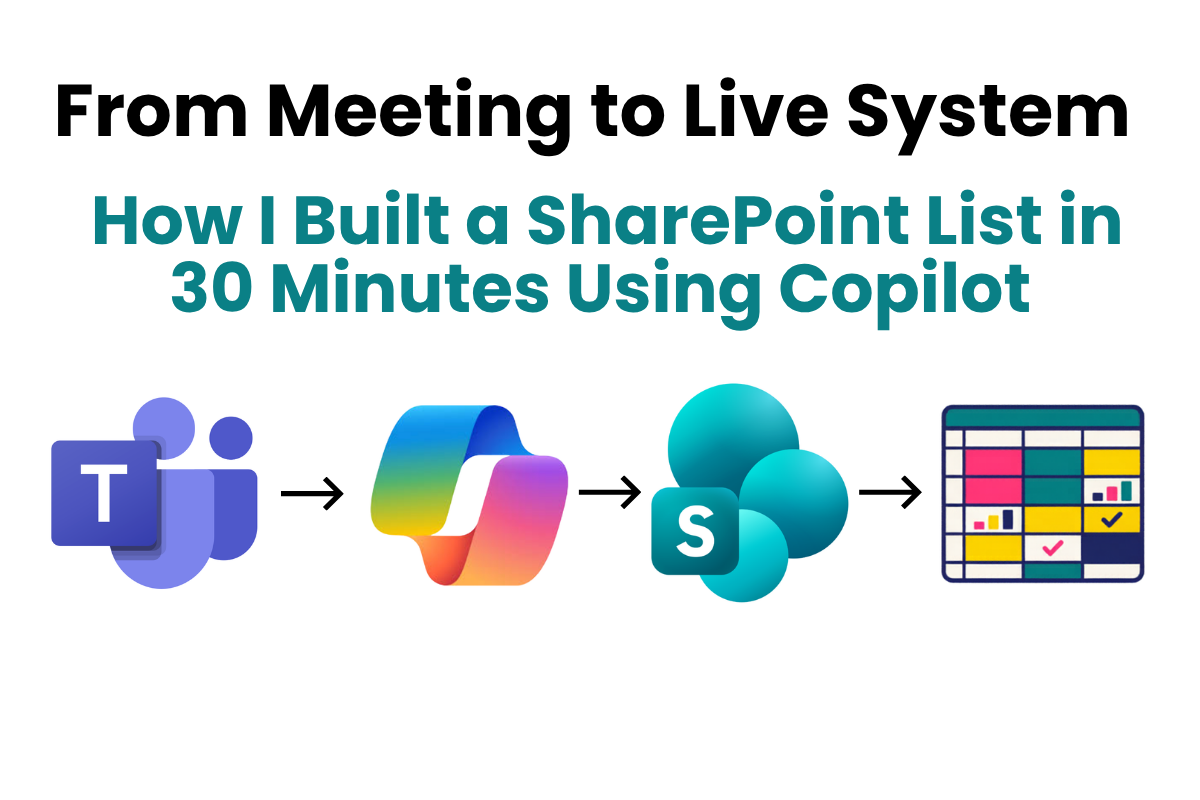
I Built a Complete SharePoint List Solution in 30 Minutes Using Copilot (From Meeting to Live System)
This was supposed to take a day. A meeting landed in my calendar with an urgent requirement — and I walked out with a fully built, live SharePoint list. Not because Copilot did magic. Because I used it the right way.
This Was Supposed to Take a Day
I got pulled into a meeting with an urgent request. A team needed a way to track stock being sent out for refunds. And they didn’t just need a basic list — they needed photos of items, labels recorded, tracking details, a clear process, and everything captured properly.
Normally, that’s a half-day to full-day job. You’d gather requirements, design the structure, build the list manually, test it, and go back and forth with stakeholders until it’s right.
This time, I did it differently.
I Didn’t Leave the Meeting With Notes — I Left With the Solution
I attended the meeting as I normally would. I asked questions, clarified what the team needed, and let the conversation flow naturally. The difference was that the meeting was recorded in Microsoft Teams.
That meant I didn’t need to reconstruct requirements afterwards. I didn’t need to guess what was said or interpret my scribbled notes. Everything was captured, exactly as it was discussed.
Step 1: Turn the Conversation Into Structure
From transcript to metadata design
As soon as the meeting ended, I opened the Teams transcript and took the full conversation into Microsoft Copilot Chat with one prompt:
“Based on this conversation, give me the exact metadata structure for a SharePoint list to track this process.”
What came back wasn’t just a list of column names. It was a structured approach — logical groupings, appropriate field types, and a clean, usable design that reflected the actual requirements from the meeting.
Step 2: Convert That Into a Build Prompt
From metadata design to actionable prompt
Rather than manually building the list myself, I asked Copilot to do one more thing:
“Write me a prompt I can use in the SharePoint list agent to create this list.”
It generated a structured prompt that included column names, data types, the purpose of each field, and the suggested setup. All I had to do was copy it.
Step 3: Let SharePoint Build It
From prompt to live list
I moved into SharePoint and opened the list creation agent. I pasted the prompt, followed the steps, selected the correct site, and clicked create.
Within minutes, the list was built. Fully structured. Ready to use.
Step 4: What Actually Took the Time?
The real time investment
Not the build. Not the design. Not the configuration.
The longest part of the entire process was sitting in the meeting. That’s where the work happened.
Traditional Approach vs What I Did
- Take notes in the meeting
- Interpret requirements later
- Design structure manually
- Build list from scratch
- Go back and forth with stakeholders
- Half a day, minimum
- Captured the conversation in Teams
- Turned it into structured metadata
- Converted it into a build prompt
- Generated the solution instantly
- Live list in under 30 minutes
The Important Bit That Everyone Skips
This didn’t work because Copilot is some kind of magic. It worked because I knew what good structure looks like, I asked the right questions in the meeting, and the conversation had enough clarity for the AI to work with.
If your requirements are vague, your output will be vague. Copilot doesn’t fix bad thinking. It accelerates good structure. The quality of what you get out is entirely dependent on the quality of what went in.
This is why understanding metadata, knowing how SharePoint lists are designed, and being able to ask the right questions in a meeting still matters enormously. The tool did the heavy lifting. The expertise shaped the result.
Why This Changes Everything
We’re moving away from building things manually and spending hours configuring lists. We’re moving toward designing solutions through conversation — and letting the system build them. For anyone who already understands SharePoint structure, this is a significant multiplier.
SharePoint has always been flexible and powerful — but slow to build properly when you’re doing it manually. That constraint is changing. If you understand metadata, structure, and process, you can go from requirement to working solution in minutes.
Final Thought
I didn’t sit down to build a list. I listened to a problem, captured it properly, and let the tools do the heavy lifting.
The skill isn’t in clicking buttons. It’s in knowing the right questions to ask — and recognising good structure when you see it. That part is still very much on you.
Want to get your SharePoint ready for this?
If your SharePoint structure is a mess, Copilot will just build on top of that mess. My resources at the hub will help you get the foundations right — so tools like this actually work for you.
Visit the Simply SharePoint Hub →