Why SharePoint is a Game-Changer for Business
SharePoint isn’t just a place to store files—it’s a powerful collaboration platform that helps teams manage documents, automate processes, and improve communication. Yet, many businesses struggle with where to start when rolling it out.
If you’re introducing SharePoint in your organisation, here’s how to set it up the right way so your team actually uses it and gets the most value from it.
Step 1: Define Your Business Goals for SharePoint
Before diving in, take a step back and ask: What problems are we solving?
✅ Do you need a better document management system?
✅ Is your team struggling with version control and multiple file copies?
✅ Are you looking for a central hub for policies and procedures?
✅ Do you want to automate manual processes like approvals and requests?
💡 Example: A marketing agency I worked with needed to replace email-based content approvals. We set up document libraries with metadata and an automated approval workflow, saving them hours each week.
Step 2: Plan Your SharePoint Structure (Don’t Wing It!)
SharePoint can quickly turn into a digital mess if not planned properly. To avoid this, define your structure upfront.
Decide How to Organise Your SharePoint Sites
📌 Department Sites (HR, Marketing, Finance)
📌 Project-Based Sites for tracking work
📌 A Central Document Management Hub with structured libraries
Folders vs. Metadata: Get It Right
📌 Avoid deep folder structures—use metadata for better filtering
📌 Create views to surface the right documents easily
💡 Pro Tip: Instead of 10 layers of folders, use metadata tags like ‘Campaign Type’ or ‘Approval Status’ and set up custom views to find what you need in seconds.
Step 3: Set Up Permissions the Right Way
One of the biggest SharePoint headaches is permission management. Done wrong, it can lead to security risks or frustrated users who can’t access what they need.
Best Practices for SharePoint Permissions:
✅ Use SharePoint Groups instead of assigning permissions individually
✅ Break inheritance sparingly—too many custom permissions create confusion
✅ Set up Read-Only vs. Edit Access strategically
💡 Example: A finance team needed restricted access to payroll data while managers needed access to reports. We set up two document libraries—one locked down and one for reporting.
Step 4: Automate & Integrate for Efficiency
One of the best things about SharePoint? Automation! Instead of manually tracking files, let SharePoint work for you.
3 Simple SharePoint Automations to Implement
📌 Teams Notification when a new file is uploaded to a key folder
📌 Email Alerts when documents in ‘Approved Content’ are modified
📌 Approval Workflows to automate document sign-offs
💡 Example: An HR team set up a ‘New Hire’ approval workflow that automatically notified IT, Payroll, and managers—eliminating email chains!
Step 5: Train Your Team (Or No One Will Use It!)
If people don’t know how to use SharePoint, they won’t. The success of your rollout depends on adoption.
How to Make SharePoint Training Work
✅ Keep it short—don’t overwhelm users
✅ Create a ‘How to Use This Site’ page with screenshots and videos
✅ Use SharePoint Learning Pathways (a free Microsoft training tool)
💡 Example: When rolling out SharePoint for a retail company, I created a 5-minute training video and embedded it on their homepage. Engagement skyrocketed!
Step 6: Launch & Drive Business-Wide Adoption
A successful SharePoint rollout doesn’t stop at setup—it needs ongoing engagement.
Final Checklist for a Smooth Launch:
✅ Test with a small team first
✅ Collect feedback & refine
✅ Monitor engagement with SharePoint Analytics
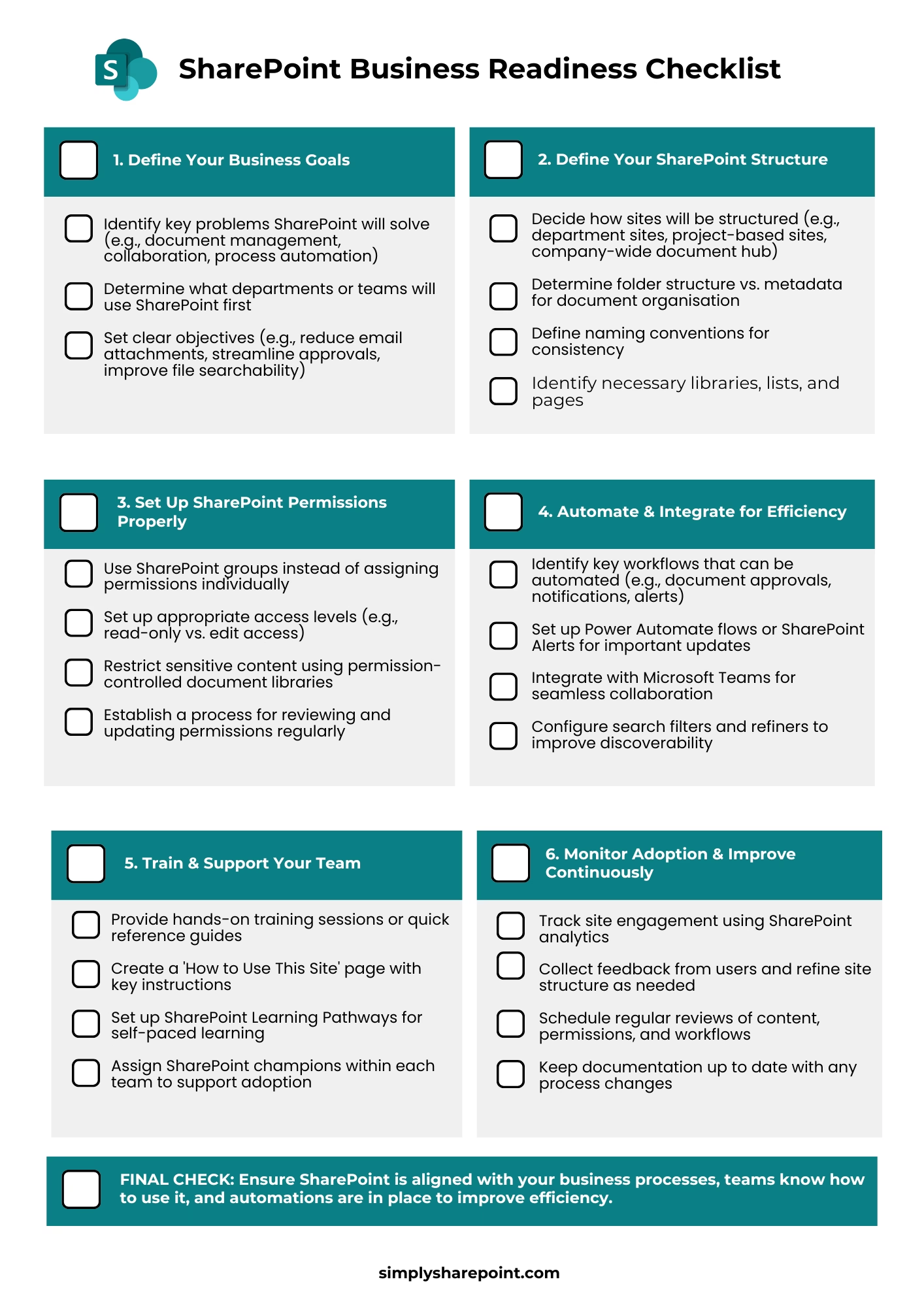
📢 Want a structured rollout plan? Attached to this post is my SharePoint Business Readiness Checklist to ensure a smooth transition.
Final Thoughts
Setting up SharePoint the right way saves your business time, improves collaboration, and makes document management effortless. Whether it’s defining goals, structuring sites, setting up permissions, automating workflows, or training your team, these steps will ensure SharePoint becomes an asset, not a frustration.
Ready to make SharePoint simpler?
Explore the Simply SharePoint Hub
If this post helped you untangle part of SharePoint, you’ll find more practical guides, templates, toolkits and resources inside the Simply SharePoint Hub. It’s where I keep the downloads and support materials designed to help you clean up, structure and actually use SharePoint with more confidence.
Visit the Simply SharePoint Hub →
Hi, I’m Liza 👋
Microsoft MVP (SharePoint) • Information Architecture Specialist
I’ve been working with SharePoint for nearly two decades, across consulting and in-house roles, helping organisations design, clean up, and scale their Microsoft 365 environments.
My focus is information architecture — the layer that determines whether search works, governance sticks, and tools like Copilot actually deliver value… or quietly make things worse.
Through Simply SharePoint, I share practical, real-world guidance on structuring libraries, designing metadata, managing permissions, and fixing the issues that policies and “best practice” slides never really solve.
Everything here is based on how SharePoint is actually used — not how we wish it was used — with a strong emphasis on foundations that scale and hold up in the AI era.