

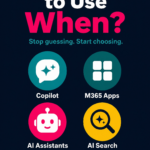
What AI Tool to Use When
A practical guide to Copilot Chat, Copilot in your apps, agents, and Cowork — and why education has to lead the way.
Access isn’t the problem anymore. The shiny new problem is subtler: with AI showing up in so many places, how do you know which one to actually use?
A year ago, the big question about AI at work was “When will I get it?” Today, for many of us, the answer is “It’s already here” — in Teams, in Word, in Outlook, in a chat window that follows us everywhere.
It’s a question I hear constantly. Someone opens a blank chat to rewrite a paragraph that the Copilot button inside Word could have polished in two clicks. Someone else wrestles a fifty-slide deck together by hand, never realising an agent could have produced the first draft. The tools are capable. The gap is knowing which one fits which moment — and that gap is closed by education, not by more licences.
So let’s make it simple. There are four main ways to work with Copilot today, and each one shines at something different.
Copilot Chat
Your everyday thinking partner for quick questions, drafting, and research.
Copilot in Your Apps
Help in the flow of work, right inside Word, Excel, PowerPoint, Outlook, and Teams.
Agents
Purpose-built specialists, grounded in specific knowledge and shareable across a team.
Cowork
An AI collaborator that takes on bigger, multi-step projects and delivers finished work.
Copilot Chat: your everyday thinking partner
Think of Copilot Chat as the colleague you can ask anything. It lives in a simple chat window — in the Microsoft 365 app, in Teams, or on the web — and it’s brilliant for work that isn’t tied to one specific document.
Reach for Chat when you want to:
- Ask a quick question or get a fast explanation
- Brainstorm ideas, names, or angles
- Draft something from scratch — an email, an outline, a first paragraph
- Research a topic or summarise text you paste in
- Jump between unrelated tasks without opening a file
“Give me five icebreaker questions for tomorrow’s team workshop.” No document needed, no setup — just an answer in seconds.
Copilot in your apps: help in the flow of work
The moment your task is about the thing in front of you — this document, this spreadsheet, this email thread — the in-app Copilot is usually the better choice. It already has the context, because it’s right there in the file with you.
Reach for in-app Copilot when you want to:
- Word: summarise, rewrite, or expand the document you’re in
- Excel: make sense of a table, suggest formulas, or spot trends
- PowerPoint: turn a document into a starter deck, or tidy up slides
- Outlook: catch up on a long thread or draft a reply in your voice
- Teams: recap a meeting you missed and pull out the action items
Instead of copying an email chain into a chat window, just ask Copilot in Outlook to “summarise this thread and list what’s owed to me.” It’s already looking at the same screen you are.
Agents: specialists for repeatable, grounded work
Chat and in-app Copilot are generalists. Agents are specialists. An agent is a purpose-built assistant grounded in a specific set of knowledge — a policy library, a project space, a product catalogue — and it can be shared so a whole team gets the same reliable help.
Reach for an agent when:
- The same kind of question comes up again and again
- The answer needs to come from trusted, specific sources — not the open web
- You want consistency across a team or department
- You’re automating a recurring, well-defined workflow
An “IT Support” agent grounded in your help articles can answer “How do I set up MFA?” the same correct way for everyone — freeing the real humans for the tricky stuff.
Cowork: your AI collaborator for bigger projects
Sometimes you don’t want a quick answer or an in-the-moment assist — you want something done. That’s Cowork. It works more like a collaborator who takes a brief, runs with it across multiple steps, and comes back with finished deliverables: documents, slide decks, spreadsheets, and more.
Reach for Cowork when:
- The task has several steps and would take you hours
- You need multiple linked artefacts from a single brief
- You want it to work more independently while you focus elsewhere
- The output is a real deliverable, not just a suggestion
“Turn this outline into a blog article, a slide deck, a podcast script, and a set of social images.”
The Quick Decision Guide
When you’re not sure, ask yourself four questions.
- Is it tied to a file I’m already in? Copilot in the app
- Is it a quick question or a fresh draft? Copilot Chat
- Is it repeatable and does it need trusted sources? Use an agent
- Is it a big, multi-step deliverable? Use Cowork
Light, Medium, or Heavy Work? Here’s Your Match.
Not every task is equal. The weight of the work — how complex it is, how many steps it involves, how much context it needs — determines which tool will actually help. Here’s how to think about it.
| Work weight | What it looks like | Examples | Best tool |
|---|---|---|---|
| ● Light | Quick, single-step tasks. You know what you want and just need it done fast. No file context needed. | Quick question, idea brainstorm, short draft, summarise pasted text, explain a concept | Copilot Chat |
| ● Light | You’re already in a file and need help with the thing in front of you — rewriting, analysing, or catching up. | Rewrite this paragraph, summarise this email thread, suggest a formula, recap this meeting | Copilot in apps |
| ● Medium | Recurring tasks that need consistent, trusted answers grounded in your organisation’s own content — not the open web. | Answer HR policy questions, handle IT support queries, respond to product FAQs, onboard new starters | Agent |
| ● Medium | Tasks that involve a file you’re in but require more structured output — turning content from one format into another. | Turn a Word doc into a PowerPoint deck, build a table from a data dump, draft a structured report from notes | Copilot in apps |
| ● Heavy | Multi-step projects that would take hours. Multiple outputs needed from a single brief. You want it running in the background while you focus elsewhere. | Build a complete launch pack (brief → deck → comms → social), research and synthesise a report, create a project plan across multiple artefacts | Cowork |
| ● Heavy | Automating a complex, long-running workflow that runs across systems, triggers on events, and requires no hand-holding. | Triage and route incoming requests, orchestrate a weekly reporting workflow, manage a multi-stage approval process | Agent Cowork |
The pattern is simple: light work stays in Chat or in-app. Medium work that repeats belongs to an agent. Heavy work that spans steps and systems belongs to Cowork — or a combination of both.
Why Education Has to Lead the Rollout
Giving people AI is not the same as helping people use AI. A licence is access. Adoption is a skill. And the difference between the two is education.
When AI lands without enablement, two things happen. Some people never touch it, because they don’t know where to start or they’re quietly worried about getting it wrong. Others use it for everything, including the things it shouldn’t be trusted with — pasting in sensitive data, accepting answers without checking, reaching for a chatbot when an in-app tool was right there. Both outcomes waste the investment.
Good AI education fixes this. Here’s what it looks like:
- 1 Hands-on, not abstract. People learn by doing real tasks from their own week, not by watching a generic demo.
- 2 Role-based. What a finance analyst needs differs from what a marketer or a frontline manager needs. Tailor it.
- 3 Focused on “when,” not just “how.” The single most useful thing you can teach is exactly what this article is about: which tool for which job.
- 4 Honest about limits. Teach people to verify, to protect sensitive information, and to treat AI as a confident assistant — not an infallible oracle.
- 5 Continuous. A one-time launch webinar fades in a fortnight. Champions, communities of practice, and bite-sized tips keep it alive.
Lead with education and you get more than higher usage numbers. You get people who reach for the right tool with confidence, who know where the guardrails are, and who actually capture the time AI promises to give back.
The value was never in the buttons.
It’s in people knowing which button to press — and why.
Match the tool to the task: Chat for quick thinking, in-app for work in the flow, agents for repeatable expertise, and Cowork for the big jobs. Then put education at the front of every rollout, not in the footnotes. Do both, and AI stops being a thing you have and becomes a thing your team genuinely knows how to use.
What’s the first task you’ll match to the right tool this week?
