Free: Download the M365 Map — see how metadata, SharePoint and Copilot connect.
hub.simplysharepoint.com/m365-map
Download the M365 MapIf you’ve used SharePoint for more than a week, you’ve probably lived this moment:
You know the document exists.
You know it’s “somewhere in SharePoint.”
But you’re five folders deep, nothing looks right, and you’re about to give up and ask someone to resend it.
That’s not a “user problem.” That’s a metadata problem.
And with Microsoft 365 Copilot rolling out more broadly, weak or non-existent metadata is about to become a much bigger issue.
What Metadata Actually Is (In Plain English)
Metadata is simply data about your documents.
In SharePoint, it’s the extra information that describes a file so you can filter, sort, search, and report on it:
- Document Type – policy, procedure, template, form, etc.
- Department – HR, Finance, IT, Sales…
- Document Status – draft, approved, archived…
- Topic / Category – what it’s actually about.
Instead of relying on “guess the right folder,” you give each document smart tags. Those tags are what make a library searchable, sortable, and eventually Copilot-ready.
Why Folders Break Down (And Metadata Doesn’t)
Take a single expense policy.
Where does it live?
- Finance → Policies → Expense Policy
- Policies → Finance → Expense Policy
- Compliance → Financial Policies → Expense Policy
With folders, you have to pick one “right” spot. If someone looks in the wrong one, they think it doesn’t exist.
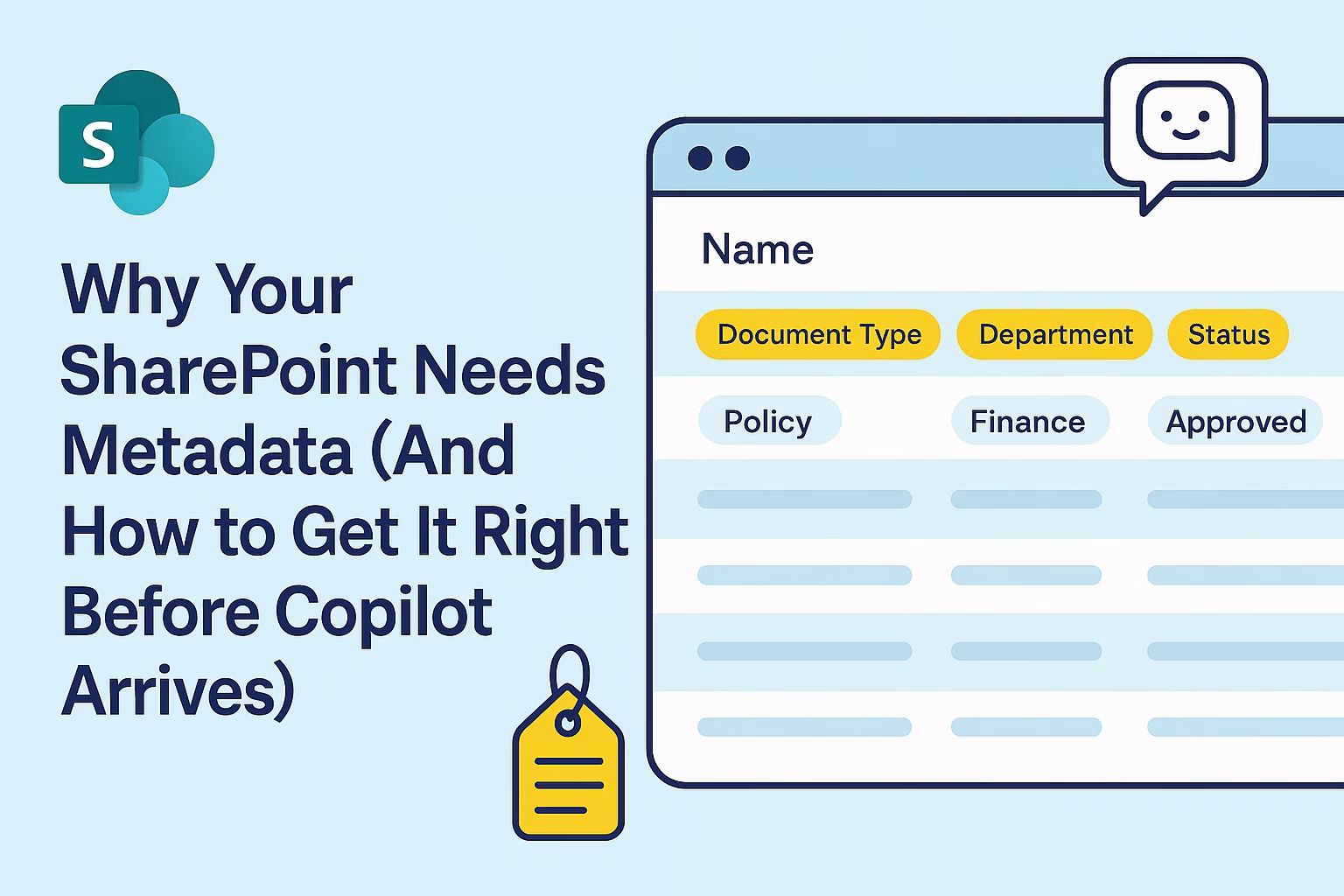
With metadata, you only store the file once but tag it with:
- Document Type: Policy
- Department: Finance
- Status: Approved
- Topic: Expense Management
Now that document can be surfaced by any of those routes – Finance, Policies, Compliance, Expense Management – without duplicate copies or guessing.
Liza’s Essential Four: The Metadata You Should Start With
You don’t need a 200-field taxonomy to get real value.
After years of SharePoint consulting, I’ve found four columns that work in almost every organisation:
- Document Type – What kind of document is this?
- Department / Function – Who owns it?
- Document Status – Is it a draft, in review, approved, or archived?
- Topic / Category – What is it about?
Add these four to your key libraries, make them required, and you’ve already moved a long way from “mystery folders” to structured, searchable content.
Want help choosing values and rolling these out?
The Metadata & Organisation Workflow Deck includes dedicated cards for each of these columns with examples and use cases.
How Metadata Powers Microsoft 365 (Including Copilot)
Metadata isn’t just a SharePoint party trick. It’s how the rest of Microsoft 365 understands your content.
- SharePoint uses metadata for filtering, views, grouping, and rules.
- Microsoft Search uses metadata to refine results across SharePoint, OneDrive, and Teams.
- Power Automate can trigger flows when metadata changes (for example, when Status becomes “Approved”).
- Microsoft 365 Copilot relies on metadata to figure out which document is the right one to use.
When someone asks Copilot, “What’s our current expense policy?”, it doesn’t click through folders like a human. It looks at documents and their metadata.
With good metadata, you can nudge Copilot toward:
- Document Type = Policy
- Department = Finance
- Status = Approved
…which usually means one correct result instead of 47 “maybe this is it?” options.
The Three Metadata Mistakes That Break Copilot
These are the patterns I see again and again in real environments:
1. No Metadata At All
Documents are dumped into libraries with no tags. Copilot has to guess based only on file names and content. That’s when you get long, noisy result lists.
2. Inconsistent Values
One site uses HR, another uses Human Resources, another uses People & Culture. To humans they’re the same; to Copilot and Microsoft Search, they’re three different things.
This is where Managed Metadata and the Term Store come in – central, standard terms that every site can reuse.
3. Out-of-Date Tags
Old drafts are still marked “Approved.” Superseded content is still tagged as current. Copilot trusts the metadata you give it, so if that’s wrong, the answers will be wrong too.
Choice vs Managed Metadata (Without the Jargon)
You’ll see two main column types used for tagging:
- Choice – a simple list of values defined inside one library.
- Managed Metadata – values pulled from the Term Store, a central taxonomy used across the whole tenant.
Choice is perfect when you’re experimenting or working in a single team.
Managed Metadata is what you reach for when:
- you want one standard list of departments, document types, regions, clients, etc.
- you care about governance, search, and Copilot accuracy across many sites.
Planning and configuring the Term Store properly is where most teams get stuck – which is exactly why I created training around it instead of trying to squeeze it into a single free blog section.
Views, Naming, and “Fixing the Mess”
Metadata does the heavy lifting, but a few other pieces help everything click:
- Views turn metadata into usable screens:
- “My Documents”
- “Recently Modified”
- “Approved Policies Only”
- “Missing Metadata” cleanup views
- Naming conventions complement metadata, especially for versioning and readability.
Together, these give users an information architecture that feels intentional rather than chaotic.
I won’t go through every recipe here – that’s exactly what my workflow cards are designed to do in a visual, step-by-step way you can keep beside you while you work.
Getting Copilot-Ready: Start Small, But Start Now
Copilot is going to expose whatever state your SharePoint is in today.
If your environment is:
- full of deep folders,
- light on metadata, and
- inconsistent across departments,
Copilot will faithfully reflect that chaos back to your users.
You don’t need a massive redesign to begin fixing this. You can:
- Pick a high-value library.
- Add the Essential Four metadata columns.
- Make them required for new documents.
- Create one or two simple views your users will actually use.
That alone gives Copilot and Microsoft Search something meaningful to work with.
How to Make Metadata Stick (Without Turning It Into a Theory Exercise)
Metadata only works if people actually use it — and that’s where most rollouts fail.
Not because metadata is hard, but because it’s usually explained in abstract terms, buried in documentation, or introduced all at once with no clear workflow. People don’t know when to apply it, which values to choose, or how it fits into their day-to-day work.
That’s why I focus on metadata as a working system, not a list of columns.
- Start small. Pick one high-value library.
- Add the Essential Four.
- Make them required.
- Use views to guide behaviour.
- Clean up as you go.
When metadata becomes part of how people upload, review, approve, and find documents — not something they’re reminded about in training — it sticks.
And once it sticks, everything else improves: search results, governance, reporting… and yes, Copilot accuracy.
The Bottom Line
Folders alone won’t carry you into the Copilot era.
If you want SharePoint, Microsoft 365 Search, and Copilot to return fast, accurate answers, you need metadata that is:
- intentional,
- consistent, and
- designed around how people actually work.
Start with Document Type, Department, Status, and Topic.
Get those right.
Then build from there.
Copilot doesn’t need perfection — but it does need structure it can trust.
Ready to fix the metadata? The Metadata & Structure Guide is the step-by-step system.
hub.simplysharepoint.com/metadata-guide
Get the Metadata & Structure Guide
Hi, I’m Liza 👋
I’ve been working with SharePoint for nearly two decades, across consulting and in-house roles, helping organisations design, clean up, and scale their Microsoft 365 environments.
My focus is information architecture — the unglamorous but critical layer that determines whether search works, governance sticks, and tools like Copilot help… or quietly make things worse.
Through Simply SharePoint, I share practical, real-world guidance on structuring libraries, designing metadata, managing permissions, and fixing the kinds of issues that naming conventions, policies, and “best practice” slides never really solve.
Everything here is based on how SharePoint is actually used — not how we wish it was used — with a strong emphasis on foundations that scale and hold up in the AI era.