I have dyscalculia — a condition that means I struggle with numbers — and Excel Copilot is the tool that removes the barrier I’ve faced for years.
I first realised this more than 20 years ago when I started working as a project coordinator. A giant spreadsheet with a pivot table was projected onto the screen and while everyone else nodded along as if it made perfect sense, I just couldn’t follow it.
The truth is, I’d always struggled with numbers and most people couldn’t understand why the basics just wouldn’t stick. I remember being shown, over and over, how to calculate a percentage on a calculator. I’d get it in the moment — but a few hours later, it was gone again. You can imagine how that made me feel about Excel. I’m someone who actually welcomes a cashless society, because it means I don’t have to count — and it’s also why I never volunteered at the local school canteen.
Over time, I built a career in SharePoint and Microsoft 365 by leaning into my strengths. I became skilled at information architecture, structure and processes that don’t rely on quick maths. But spreadsheets? They’ve always taken me longer. I can’t remember phone numbers. I count on my fingers. I don’t interpret data quickly.
That’s why, when Microsoft released the new Excel Copilot function, I put it to the test with some messy metadata I created to mimic SharePoint exports. And I can honestly say: it has changed everything.
Two Ways Copilot Works in Excel
Here’s what I’ve learned: there are actually two ways to use Copilot in Excel, and they serve slightly different purposes.
Copilot in the Chat Pane (available now)
This is the version many of us already have. You:
- Select a range or table
- Open the Copilot sidebar
- Type what you want in plain English
For example, I asked:
“Highlight all items older than 5 years.”
And Copilot instantly applied formatting to every outdated document in my SharePoint export.
The chat pane is interactive and action-based. You give instructions and Excel applies them. It’s perfect for one-off cleanups and quick insights.
Copilot as a Formula (=COPILOT()) (rolling out in Beta)
This is the brand-new version only available to Copilot subscribers in the Insider Beta Channel. It works like any other Excel function:
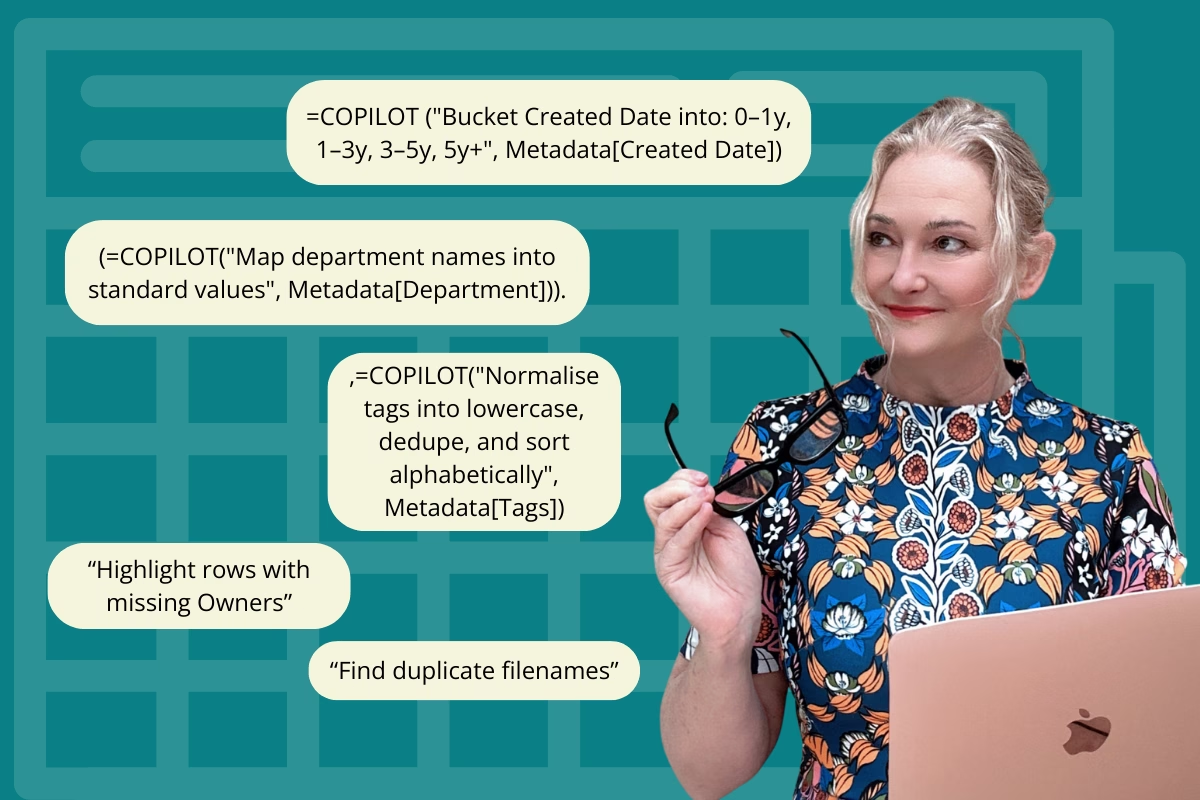
=COPILOT("Bucket Created Date into: 0–1y, 1–3y, 3–5y, 5y+", Metadata[Created Date])Instead of just formatting cells, it returns results directly into your sheet, and those results update automatically whenever the data changes.
This makes it a game changer for repeatable workflows.
Imagine building a SharePoint cleanup dashboard where every time you paste in a new export, Copilot instantly classifies duplicates, flags missing metadata and recommends lifecycle actions.
Why This Is a Game Changer
For someone like me, who has always struggled with numbers, Copilot removes the barrier. It lets me think in language, not formulas. I don’t have to get lost in calculations. I can stay focused on meaning and structure — the things that make SharePoint successful.
This isn’t just a productivity boost. It’s accessibility. It’s empowerment.
And it’s not just for people with dyscalculia. Anyone who has ever stared at an Excel formula bar in frustration will feel the relief.
SharePoint Cleanup Made Simple
Messy metadata exports are the reality of SharePoint:
- Inconsistent Document Types (HR Policy, Human Resources Policy, Hr_Policy)
- Blank Owners
- Duplicate filenames (Policy_final.docx, Policy_v2.docx)
- Files last touched in 2013
Traditionally, cleaning this meant filters, formulas, and pivot tables. Now, you can simply ask Copilot — either in the chat pane (“Highlight missing Owners”) or inline as a formula (=COPILOT("Map department names into standard values", Metadata[Department])).
The difference is that chat-based Copilot is great for immediate fixes, while formula-based Copilot builds repeatable processes you can refresh over and over.
Subscribe and Receive Our Mini Guide
Excel Copilot for SharePoint: Chat vs Formula
Comparison Table
| Feature | Copilot Chat Pane | Copilot Formula (=COPILOT()) |
|---|---|---|
| How you use it | Type in sidebar | Enter as a formula in a cell |
| Availability | Already rolling out to Copilot users | Beta Channel only (early access) |
| Best for | One-off cleanups, formatting, quick insights | Repeatable workflows, dashboards |
| Example | “Highlight all items older than 5 years” | =COPILOT("Bucket Created Date into: 0–1y, 1–3y, 3–5y, 5y+", Metadata[Created Date]) |
| Refresh | Static (unless you re-run) | Dynamic (updates when data changes) |
Chat Pane Useful Prompts
- Highlight all items older than 5 years
- Group Document Types into Policy, Procedure, Form, Template
- Find duplicate filenames
- Highlight rows with missing Owners
Formula Version Useful Prompts
=COPILOT("Bucket Created Date into: 0–1y, 1–3y, 3–5y, 5y+", Metadata[Created Date])=COPILOT("Map department values to: HR, IT, Finance, Marketing, Comms, Operations", Metadata[Department])=COPILOT("Normalise tags into lowercase, dedupe, and sort alphabetically", Metadata[Tags])=COPILOT("Recommend Keep, Archive, or Delete based on Document Type, Owner, and Modified Date", Metadata[[#Data],[Document Type]:[Modified Date]])
Making Excel Work for Everyone
Right now, I’m using Copilot in the chat pane — and for me, that alone has been transformative. But I know the inline =COPILOT() formula is coming and when it lands, it will take things to another level.
For the first time, Excel is finally accessible to people like me who have struggled with numbers our whole lives. And for anyone managing SharePoint, it’s about to make messy library cleanup simpler, faster and more effective than ever before.