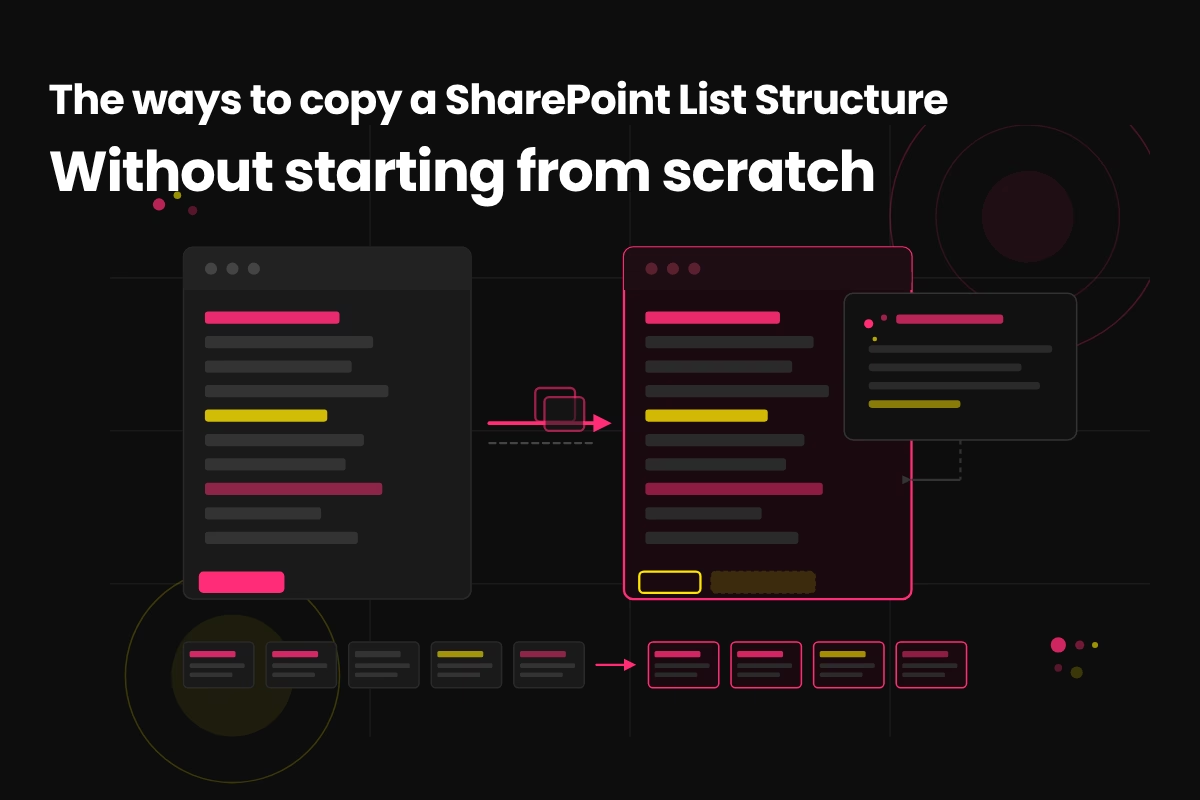
How to Copy a SharePoint List Structure (Without Starting From Scratch)
When someone needed to replicate a complex list structure, I had two options: use an AI agent or go old-school. Here’s what happened — and what it taught me about AI, SharePoint, and knowing your stuff.
Here’s a scenario that will be instantly familiar to anyone who’s been working in SharePoint for a while: someone comes to you with what sounds like a simple request. “Can you just copy that site?”
If you remember classic SharePoint, you’re probably nodding. You used to be able to save a site as a template, zip it up, and deploy it elsewhere in a few clicks. List structure, columns, calculated fields, views — the works. Modern SharePoint? That’s a different story.
This week, I was handed exactly this problem. A team needed to replicate a SharePoint site with around ten lists, each one packed with columns — including calculated columns — and recreate the whole thing in a new site. Same structure. No content. Just the bones.
It gave me a great opportunity to test a couple of approaches, including something I’ve been watching closely: the knowledge agent in SharePoint. Here’s how it went.
Why You Can’t Just “Copy” a Modern SharePoint Site
Modern SharePoint removed the ability to save sites or lists as templates in the traditional sense (for most tenant configurations). There’s no export-and-redeploy workflow that works cleanly out of the box — especially once you factor in custom columns, calculated fields, and content types.
So when someone asks you to “just copy it,” what they’re really asking for is one of these:
Manually recreate the lists from scratch in the new site, column by column.
Use “Create a list from existing list” — a built-in modern SharePoint option that copies list structure (not content) from another site.
Use an AI agent — specifically, the SharePoint knowledge agent — to describe and rebuild the list structure using natural language.
Use PowerShell or PnP templates — a more technical path that works well but requires scripting knowledge and admin access.
In this case, I focused on options 2 and 3 — and what happened was genuinely interesting.
Option 1: The Knowledge Agent Experiment
The SharePoint knowledge agent is currently in preview, and I only have it deployed on a couple of sites. The idea is simple: it’s an AI assistant that understands the content and structure of a SharePoint site and can respond to natural language queries and instructions.
So I went into the source site, opened the knowledge agent, and in plain English, I described every column in one of the lists — data types, calculated formulas, options, everything. Then I asked it to create a new list with that exact structure.
💡 The result? The knowledge agent produced the list perfectly. Every column, every setting — in one go. The whole exercise, from describing the list to having it built, took around 5 to 10 minutes. That was genuinely impressive.
This was the first use case I’ve seen where the knowledge agent delivered something that made me stop and think: okay, this is actually amazing.
But — and this is important — there was a catch.
The knowledge agent was only installed in a couple of sites. The new destination site didn’t have it. Getting it installed would have meant going through a formal change process, and realistically, that would have added a couple of days to the timeline. For an urgent request, that wasn’t acceptable.
Option 2: Create a List from an Existing List
This is built into modern SharePoint and it’s underused. Here’s how it works:
Go to the destination site and click + New, then List.
Choose “From existing list” and browse to the source site.
Select the list you want to replicate. SharePoint copies the column structure (not the content) into your new list.
Repeat for each list in the site.
Reconfigure navigation, views, and page layout in the new site.
This is the approach I used. One list at a time, I rebuilt each of the ten lists using the existing list as the template — and within a reasonable amount of time, I had a brand new SharePoint site with the exact same list structure as the original. No content, no admin escalation, no waiting on a change ticket.
It’s not glamorous. It’s not AI-powered. But it worked, it was reliable, and I could test each list as I went.
AI vs Old School: An Honest Comparison
⚡ Knowledge Agent
| ➜ | Incredibly fast — 5–10 mins per list |
| ➜ | Natural language input |
| ➜ | Impressive accuracy on complex columns |
| ➜ | Only available in preview sites |
| ➜ | Requires installation and setup |
| ➜ | Blocked if agent isn’t on target site |
🔧 Create from Existing List
| ➜ | Available everywhere, no setup |
| ➜ | Reliable and testable as you go |
| ➜ | Works within change-controlled environments |
| ➜ | Slower — one list at a time |
| ➜ | Requires you to know what you’re looking at |
| ➜ | No surprises |
Here’s the thing: the AI approach was technically faster per list. But when I factored in the access issue, the review time, and the mental energy of trusting a preview tool on a real client’s data — the tried-and-true method was actually quicker overall. Not because AI failed. But because the environment wasn’t ready for it.
The Real Lesson Here
AI tools are brilliant. But they don’t replace understanding.
Yes, Copilot is impressive. Yes, the knowledge agent produced a perfectly structured list from natural language. But to use it well — to know whether to trust the output, to spot when a calculated column formula hasn’t translated correctly, to catch a missing required field — you still need to understand how SharePoint lists work from the ground up.
The AI didn’t know that one of the columns had a specific validation formula that needed to reference another column. I did. That’s the difference.
When it came down to it, it was actually quicker for me to rebuild manually than to try to set up the AI tool in an environment that wasn’t ready. That’s not a criticism of the technology — the knowledge agent genuinely impressed me. It’s a reminder that tools work best when you understand what they’re doing and you’ve built the right foundation.
Great AI tools still need:
A plan. What are you trying to achieve? What’s the structure you’re working toward?
Structure. The right environment, the right permissions, the right deployment.
Understanding. You need to know enough to review the output and catch errors.
Testing. Even when AI produces something that looks perfect, you need to validate it before you hand it over.
What To Do When You Need to Replicate a SharePoint Site
Here’s my practical recommendation depending on your situation:
Use the knowledge agent if: it’s already installed on both sites, you’re comfortable reviewing its output, and you have complex lists where speed matters more than caution.
Use “Create from existing list” if: you’re in a governed environment, the knowledge agent isn’t available, or you simply want a reliable, testable method with no dependencies.
Use PowerShell / PnP templates if: you’re doing this at scale, need repeatability, or are working with a full site structure including pages and navigation (not just lists).
And regardless of which method you use — test it. Column by column. Formula by formula. Before you hand it over.
If it’s worth copying, it’s worth structuring properly first.
The File Sanity Kit gives you the Container Method — a practical system to audit, restructure, and future-proof your SharePoint. PDF guide, PowerPoint deck, and Excel worksheets included. So the next time someone says “can you just copy that site?” — it’ll actually be worth copying.
Get the File Sanity Kit — $27 →