

20 Ways I Use Microsoft Copilot Every Day (2026 Update)
Still true — just a lot more of it now
When Microsoft Copilot first launched, I knew it had potential — I just didn’t realise how much of a game-changer it would become. I wrote the original version of this list when Copilot could summarise a meeting and draft an email for you. It can still do all of that. It can also build me a SharePoint site from a sentence, run as an agent inside a library answering my team’s questions, and pull together research from a dozen documents in one prompt.
Every single one of the 15 things I first wrote about is still something I do most days. I haven’t taken any of them out — I’ve just added what’s changed underneath them.
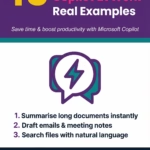
15 Ways I Use Microsoft Copilot Every Day
- 1.Summarising action items from meetings — after a Teams meeting, I use Copilot to summarise the key points and list action items. It saves me sifting through hours of recordings and ensures nothing gets missed.
- 2.Drafting reports from OneNote — I jot down rough ideas in OneNote, and Copilot turns those notes into structured report outlines, giving me a solid starting point for polished documents.
- 3.Summarising client documents — when clients send over multiple documents, Copilot extracts the key points and gives me a concise summary. A huge time-saver for analysis.
- 4.Suggesting metadata in SharePoint — organising SharePoint libraries has always been one of my specialties, and Copilot makes it easier still. It reviews content and suggests relevant metadata, keeping libraries clean and searchable.
- 5.Preparing for project meetings — before a meeting, I ask Copilot for a project status update pulled from Outlook, Planner and Teams. It consolidates everything I need into one place.
- 6.Keeping up with client conversations — Copilot helps me stay on top of client interactions by surfacing the latest conversations, emails and updates. Like having a personal assistant keeping me informed.
- 7.Rewriting sections of reports — when a paragraph won’t flow, Copilot rewrites it so it’s clear, professional and cohesive.
- 8.Drafting emails from bullet points — I feed Copilot a few bullet points and it drafts the email. I tweak it as needed, but it’s usually spot-on.
- 9.Extracting content with SharePoint Agents — I use SharePoint Agents to pull specific content straight out of my reports. Great for reusing information without searching manually.
- 10.Generating FAQs from training materials — Copilot analyses my training materials and produces a list of frequently asked questions, perfect for extra resources without starting from scratch.
- 11.Creating new course outlines — when I need new training materials, Copilot reviews my existing content and drafts outlines for new courses, giving me a head start.
- 12.Summarising email threads — Copilot makes sense of long, complicated email chains by summarising them into key points. I catch up in seconds instead of reading everything.
- 13.Handling basic formulas in Excel — I’m no formula expert, but Copilot calculates what I need in Excel. I tell it what I want, it does the maths.
- 14.Building Power Automate workflows — Copilot gives me step-by-step instructions for building basic Power Automate workflows, taking the guesswork out of automation.
- 15.Improving my writing — refining sentences for clarity or suggesting better word choices, Copilot’s feedback keeps my writing polished and professional.
What’s New Since I Wrote This
This is the part that didn’t exist when I first published this list. Copilot has moved from “helpful assistant” to something closer to a colleague that can act on its own — and these five are the additions I now rely on just as much as the original fifteen.
- 16.Running a SharePoint Agent on my own library — I’ve set up a custom agent scoped to one client’s library that answers “where’s the latest version of X” and “summarise everything tagged Q3” without me touching the library at all.
- 17.Synthesising research with Copilot Notebook — when I’m working across a dozen source documents for a proposal, Notebook keeps track of everything I’ve fed it and lets me ask questions across all of it at once, with citations back to source.
- 18.Auto-tagging entire libraries, not just one document — it used to be “Copilot suggests metadata for this file.” Now AI in SharePoint (generally available since May 2026) reviews and tags a whole library in one pass — a genuinely different scale of time saved.
- 19.Building whole SharePoint pages from a prompt — “build me a project status page with a document library, a task list and a Teams link” is now a request I actually make, not a wish-list item.
- 20.Chaining several of these together without me in the loop — the newest shift is agentic: Copilot picking up a task, working through three or four of the steps above in sequence, and only coming back to me for a decision — not for the legwork.
“Copilot went from finishing my sentences to finishing my errands. That’s the real change.”
Why I’m Building a Dedicated Home for This
The truth is, this list isn’t really about SharePoint anymore — it’s about how I work as a knowledge worker. That’s exactly why I’ve started building out AI for Knowledge Workers, a growing knowledge base that goes deeper into this: the frameworks, prompts and habits that make Copilot an actual working partner instead of a novelty.
It’s early days — that page has been live for about a week — but it’s already become the most-searched-for topic on this site, which tells me I’m not the only one feeling this shift. It all starts with one free download.
Already know AI is going to be part of your role?
Skip the queue and go straight to the AI-Ready Knowledge Worker Playbook — $39: 75+ tested prompts, an Excel Prompt Library, and a 30-day habit builder built around the same Decision Tree and Red Lines framework as the free kit.
It’s the first of a growing set of role-specific playbooks — the Executive Assistant AI Role Playbook ($29) is live now too, with Project Manager, HR, Operations and Communications playbooks in development at simplyaiready.com.
Why Copilot Works for Me
None of this is theoretical — it’s the work I do every day, then and now. Copilot has freed up so much of my time that I’ve been able to focus on what actually matters: delivering value to clients, staying ahead of my projects, and building out this next chapter of my work.
If you’re not using Copilot yet, or you stopped exploring after the first few obvious use cases, there is so much more here than there was even a year ago. Let me know in the comments how you’re using it.
Join the Simply SharePoint newsletter
Practical SharePoint and Microsoft 365 tips, straight to your inbox — no fluff.
Subscribe free
Hi, I’m Liza 👋
Microsoft MVP (SharePoint) • Information Architecture Specialist
I’ve been working with SharePoint for nearly two decades, across consulting and in-house roles, helping organisations design, clean up, and scale their Microsoft 365 environments.
My focus is information architecture — the layer that determines whether search works, governance sticks, and tools like Copilot actually deliver value… or quietly make things worse.
Through Simply SharePoint, I share practical, real-world guidance on structuring libraries, designing metadata, managing permissions, and fixing the issues that policies and “best practice” slides never really solve.
Everything here is based on how SharePoint is actually used — not how we wish it was used — with a strong emphasis on foundations that scale and hold up in the AI era.
