
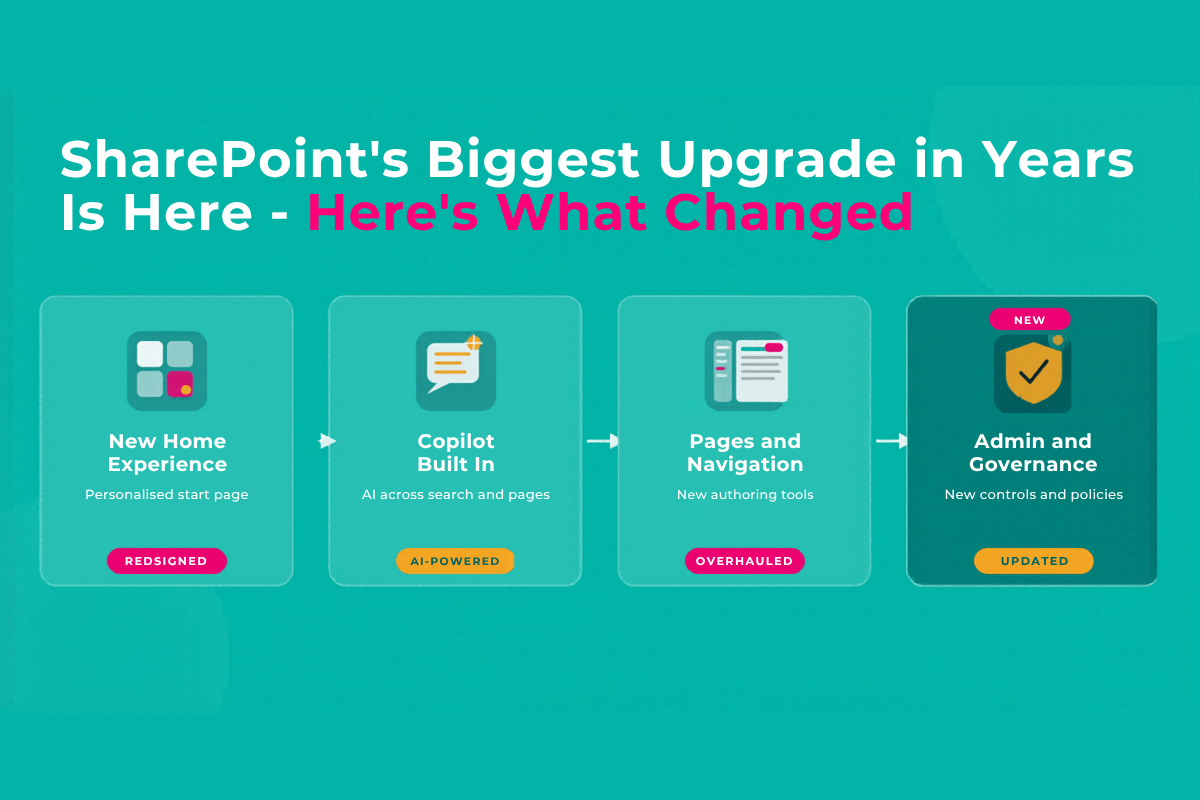

SharePoint’s Biggest Upgrade in Years Is Here — Here’s What Changed
The biggest AI upgrade to SharePoint in years just quietly landed. Here’s everything end users need to know — in plain English.
SharePoint just turned 25, and Microsoft celebrated with more than birthday cake. Over the past few months, a wave of new features has landed — many of them AI-powered — that quietly change how SharePoint works day to day.
If you’re an end user (not an IT admin, not a developer — just someone who uses SharePoint to get their job done), this post is for you. I’ve filtered out the technical noise and pulled out everything that’s actually going to affect your experience.
The Biggest Change — The AI Assistant Got a New Name and New Powers
If you’ve heard the term Knowledge Agent floating around — that’s now called AI in SharePoint. Same idea, bigger capabilities. Think of it as SharePoint’s built-in AI assistant that’s been quietly upgraded from “helpful chatbot” to “capable co-worker.”
Previously it could answer questions about content on a site. Now it can actually do things for you. Here’s what’s new:
AI in SharePoint is still in public preview and requires a Microsoft 365 Copilot licence. Check with your IT team if you’re not sure whether your organisation has access. It also uses Anthropic’s Claude AI under the hood — which means some regions (particularly EU and UK) may need an admin to flip a switch first.
The floating action button you might notice appearing on SharePoint pages is your doorway in. It gives you context-aware suggestions based on what you’re looking at and what role you play on that site.
Lists Just Got Much More Useful
SharePoint Lists have always been one of those features that’s genuinely powerful but hard to get started with. That’s changing.
Creating Pages and News Posts Got Easier
The FAQ web part is powered by Copilot and works by reading your site’s own content to generate and maintain answers automatically. You review and approve — it’s not hands-off AI, it’s AI with a human in the loop. Add it to any page, and it surfaces the questions your visitors are actually asking, answered from content that already exists on your site.
What makes it stand out is that it doesn’t go stale. As your content changes, the FAQ updates with it. No more FAQ pages that contradict the actual policy document three clicks away.
It’s still in preview (full GA expected later in 2026), so you’ll need a Copilot licence and your admin to enable it — but if you manage a team site, an intranet page, or any content-heavy area of SharePoint, this is one to get your hands on now.
SharePoint turned 25 on 2 March 2026. It now has over 1 billion users each year, with more than 2 billion files uploaded and 2 million new sites created every single day. It’s also now the number one content source powering Microsoft 365 Copilot — which is exactly why getting your SharePoint content organised matters more than ever.
Your Intranet Is Getting a Refresh
If your organisation uses SharePoint as its intranet (and most do), a few changes are happening to the home site experience that you may notice:
Finding Stuff Just Got Smarter
One of the biggest promises of AI in SharePoint is that Copilot gets better at finding and surfacing the right content — not just matching keywords, but understanding what you’re actually asking.
Things That Are Going Away — What You Need to Know
With all these new additions comes the usual spring clean. Here’s what’s being retired or changed, and whether it affects you as an end user:
If a tool, button, or custom app inside SharePoint stopped working around 2 April 2026, it may be connected to the retirement of SharePoint Add-Ins. Raise it with your IT team and mention the Add-In retirement — that will help them diagnose it faster.
The Bigger Picture — Why This All Matters
Microsoft is making a clear bet: SharePoint is the content layer that makes Copilot useful at work. Every single AI feature Microsoft is rolling out depends on content being findable, well-structured, and properly labelled.
That means if your SharePoint is messy — outdated pages, unfiled documents, libraries with no metadata — all of these shiny new AI features are going to underperform. Copilot will surface stale content, miss important documents, and give your colleagues answers that aren’t quite right.
The flipside? If your SharePoint content is in good shape, the improvements coming through 2026 are going to make a genuine difference to how quickly people can find answers, get work done, and collaborate — without having to dig through folders or ask someone who knows where things are.
AI in SharePoint is only as good as the content it’s working with. Tidy SharePoint = powerful Copilot. Messy SharePoint = an expensive AI that tells people the wrong thing. Now is a genuinely good time to get your content house in order.
Ready to Get Your SharePoint in Shape?
The Simply SharePoint hub has guides, cheat sheets, and a full step-by-step playbook to help you organise your content before the AI features fully arrive.
Explore the Resource Hub →
Hi, I’m Liza 👋
Microsoft MVP (SharePoint) • Information Architecture Specialist
I’ve been working with SharePoint for nearly two decades, across consulting and in-house roles, helping organisations design, clean up, and scale their Microsoft 365 environments.
My focus is information architecture — the layer that determines whether search works, governance sticks, and tools like Copilot actually deliver value… or quietly make things worse.
Through Simply SharePoint, I share practical, real-world guidance on structuring libraries, designing metadata, managing permissions, and fixing the issues that policies and “best practice” slides never really solve.
Everything here is based on how SharePoint is actually used — not how we wish it was used — with a strong emphasis on foundations that scale and hold up in the AI era.
