Throughout this article, you’ll see references to Collaboration Workflow Cards. These are printable, visual cards I created to show everyday Microsoft 365 collaboration workflows in a simple, step-by-step way. Each card covers one scenario – like co-authoring a Word document, collecting feedback, running a live editing session in Teams, or collaborating with external partners – with clear actions on the front and pro tips on the back.
They are designed for real users, not admins: perfect for handing to a colleague, using in training sessions, or keeping on your desk as a quick reference when you’re not sure which app to use or what to click next.
- 30 visual workflows covering real-world collaboration scenarios
- Step-by-step instructions for Teams, SharePoint, OneDrive and Office apps
- Front and back layout: workflow on one side, tips and best practices on the other
- Ready to print as a full deck for team training or desk reference
If you’ve been using Microsoft 365 for a while, you’ve probably had at least one of these moments:
You open a document and wonder why it’s in three different places.
Someone has created another version of the same file.
Your team is still emailing attachments even though everyone “knows” they shouldn’t.
These are not technology problems—they are workflow problems.
And this is exactly why I created The Microsoft 365 Collaboration Workflow Cards, now available here:
https://shop.simplysharepoint.com/products/microsoft-365-collaboration-workflow-cards
They simplify collaboration into clear, visual steps so your team can co-author, share, and organise content properly—no training session required.
This article builds on my previous guide about how collaboration works across Microsoft 365, but goes deeper into what practical collaboration looks like day-to-day, and how teams can avoid the hurdles that create chaos.
Why Collaboration Fails (Even With All the Right Tools)
Microsoft 365 gives us everything we need for high-quality collaboration:
- Real-time co-authoring
- Version history
- Comments and @mentions
- Metadata
- Approval workflows
- Shared workspaces
- Loop components
But most people use these features inconsistently—or not at all. Why? Because they don’t have a standard way of working.
One person uses Track Changes. Another rewrites the document. Someone else emails a copy. Someone else locks the file.
This creates duplication, conflict, and confusion.
A clear workflow fixes this. Every card in the deck is designed around the same principle:
One way of doing things, consistently.
The Three-Stage Collaboration Lifecycle
The simplest way to understand collaboration in Microsoft 365 is to look at the lifecycle of a document—not the apps.
1. Drafting (Private Work)
Tool: OneDrive
When you’re shaping ideas, drafting early versions, or building something not ready for the team, OneDrive is the safest space.
You own it.
Nobody else edits it.
You decide when it’s ready to move.
Relevant cards:
- Seeing Important Documents
- Restore Previous Versions
- Working Offline
2. Active Collaboration
Tool: Teams
Teams is where collaboration actually happens.
Files are shared, edited, discussed, reviewed, and improved—together and in real time.
Use Teams when you need:
- co-authoring
- comments
- brainstorming
- whiteboarding
- real-time review
- meeting-based co-editing
- rapid iteration
Relevant cards:
- Co-author Word/Excel/PowerPoint
- Collect Feedback
- Co-edit During a Meeting
- Use Loop Components
- Whiteboarding
- Mention Someone
3. Long-Term Storage and Structure
Tool: SharePoint
SharePoint is where finalised content lives.
This is where structure, metadata, templates, and governance matter.
Use SharePoint when:
- the document is final or near final
- permissions matter
- templates must be managed centrally
- external sharing requires control
- content needs long-term visibility
- approval workflows are required
Relevant cards:
- Create a Shared Workspace
- Organising Team Files
- Document Templates
- Request Sign-Off
- External Collaboration
This lifecycle alone solves one of the biggest sources of collaboration confusion:
you’re not choosing between apps—you’re moving through them.
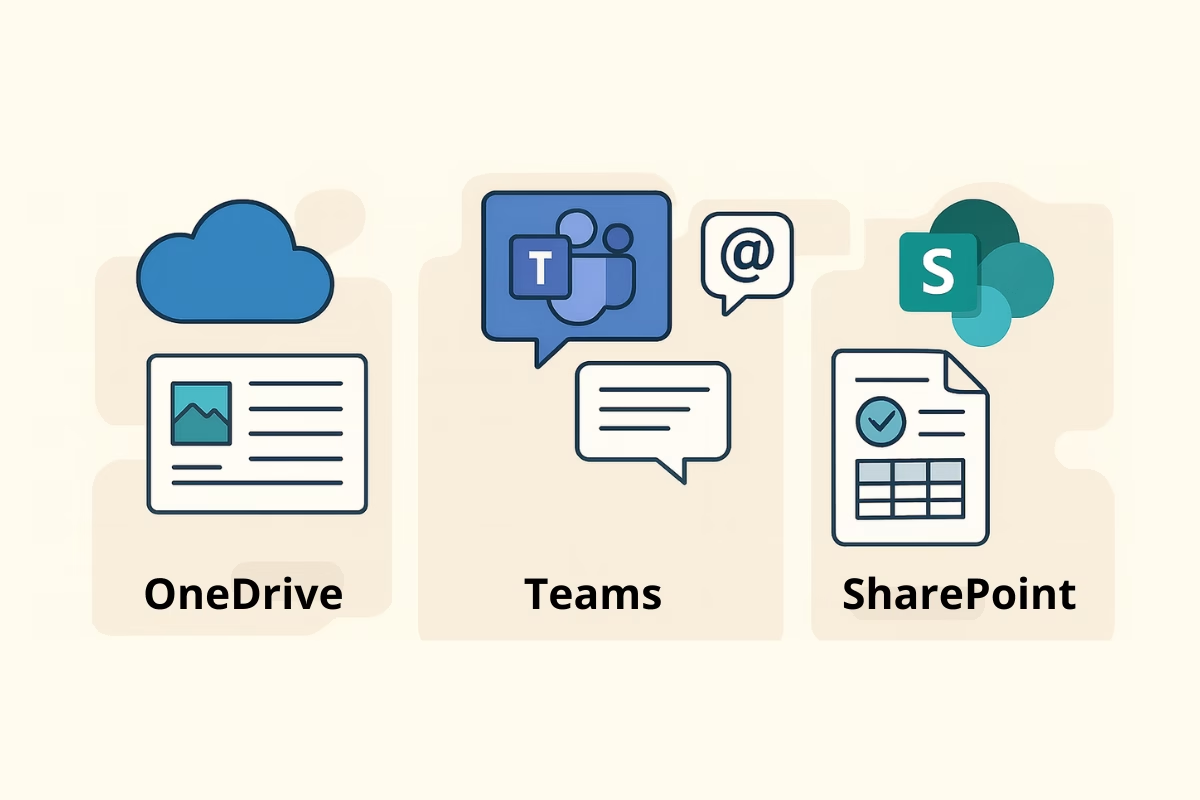
Turn the OneDrive → Teams → SharePoint Flow into a Habit
The most effective teams treat collaboration as a simple lifecycle: draft in OneDrive, collaborate in Teams, and finalise in SharePoint. The Collaboration Workflow Cards turn this into practical, repeatable steps your users can follow without a training session.
- Cards for co-authoring Word, Excel and PowerPoint
- Workflows for live editing during Teams meetings
- Guides for moving content into structured SharePoint libraries
The Collaboration Behaviours Every Team Needs
Regardless of role or technical skill level, there are three behaviours the most effective teams share.
1. They always work in one live file
No duplicates.
No email attachments.
No renamed versions.
This prevents version conflicts before they happen.
Relevant cards:
- Avoid Version Conflicts
- Share the Link
- See Who’s Editing
2. They use comments—not rewrites
Rewriting someone’s work creates unnecessary friction.
Comments keep revision clean and collaborative.
Relevant cards:
- Leave Comments
- Resolve Comments
- Mention Someone
3. They finalise properly
Finalisation is not a copy/paste job—it’s a deliberate handover:
- Approvals
- Version review
- Metadata
- Templates
- Long-term storage
Relevant cards:
- Track Changes
- Accept/Reject
- Compare Versions
- Request Sign-Off
- Version History
The Missing Link: Visual Workflows
Most teams know what collaboration should look like.
But they’ve never seen it visualised.
That’s why the Collaboration Workflow Cards exist.
Teams can quickly flip to:
- “How do I co-author in PowerPoint?”
- “How do I get feedback from multiple people?”
- “How do I share this with an external partner securely?”
- “How do I run a live editing session in a meeting?”
One card per workflow.
Front and back.
No guessing.
You can grab the full deck here:
https://shop.simplysharepoint.com/products/microsoft-365-collaboration-workflow-cards
Final Thoughts
Modern collaboration in Microsoft 365 is not about learning every feature.
It’s about choosing one clear way to work—and sticking to it.
The right workflows:
- eliminate duplication
- remove version conflict
- simplify feedback loops
- speed up project delivery
- make governance simple
- align the whole team
And once your team has one shared way of working, everything becomes easier.

Hi, I’m Liza 👋
I’ve been working with SharePoint since 2005, and nothing excites me more than diving into a messy SharePoint environment and transforming it into something streamlined and intuitive.
I created Simply SharePoint to share practical, real-world advice for end users, managers, and teams who need more than just basic tutorials. My focus is on information architecture, out-of-the-box solutions, and making Microsoft 365 work the way it should—without the jargon.
When I’m not fixing SharePoint chaos, you’ll find me exploring the city with my daughter, enjoying live music, or indulging my passion for fashion and bold color (which you might notice in my brand!).
Ready to make SharePoint make sense? Get my free Quick Start Guide and join 1,000+ professionals learning inside Simply SharePoint.
Get the Free Quick Start Guide →